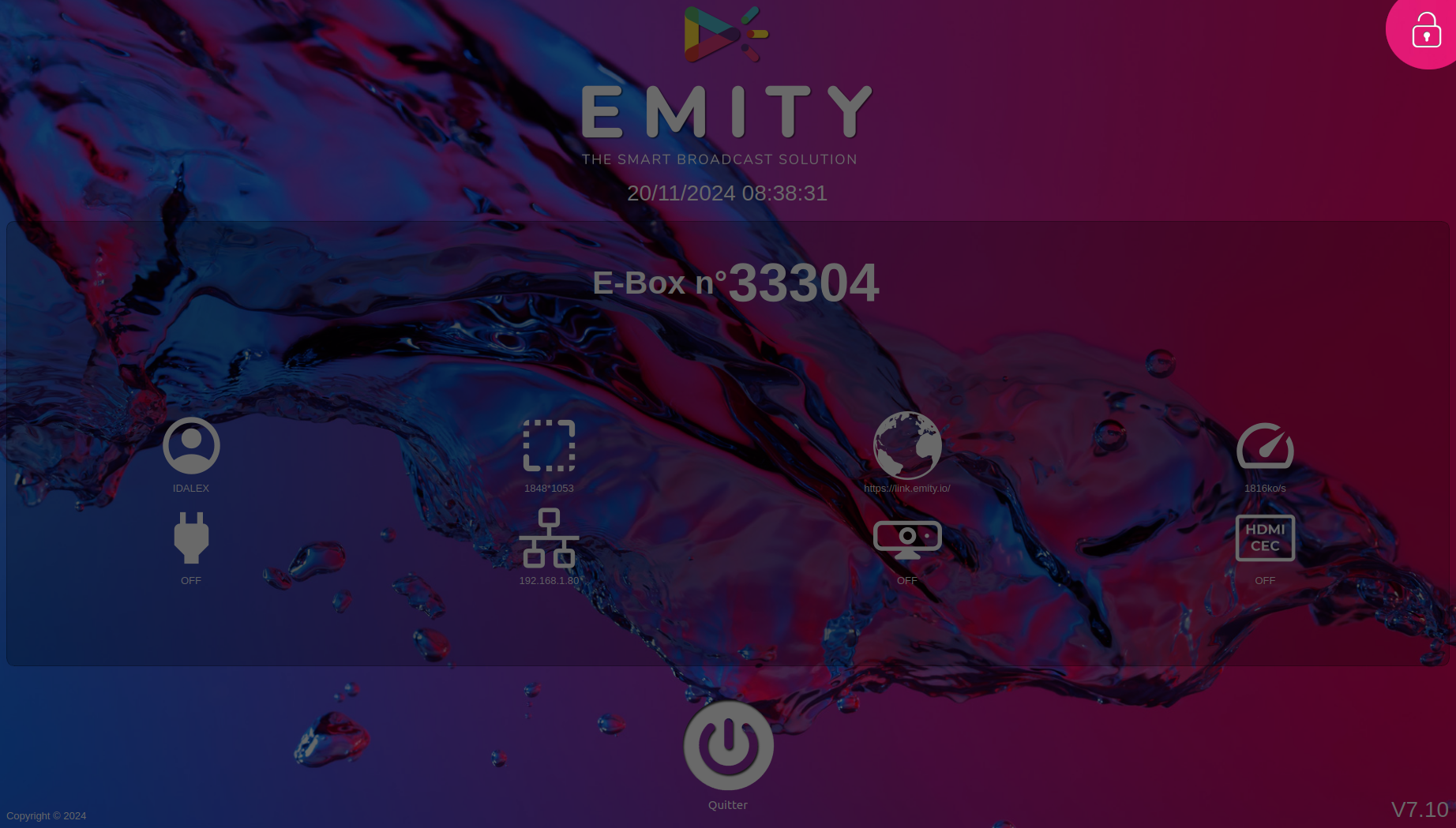
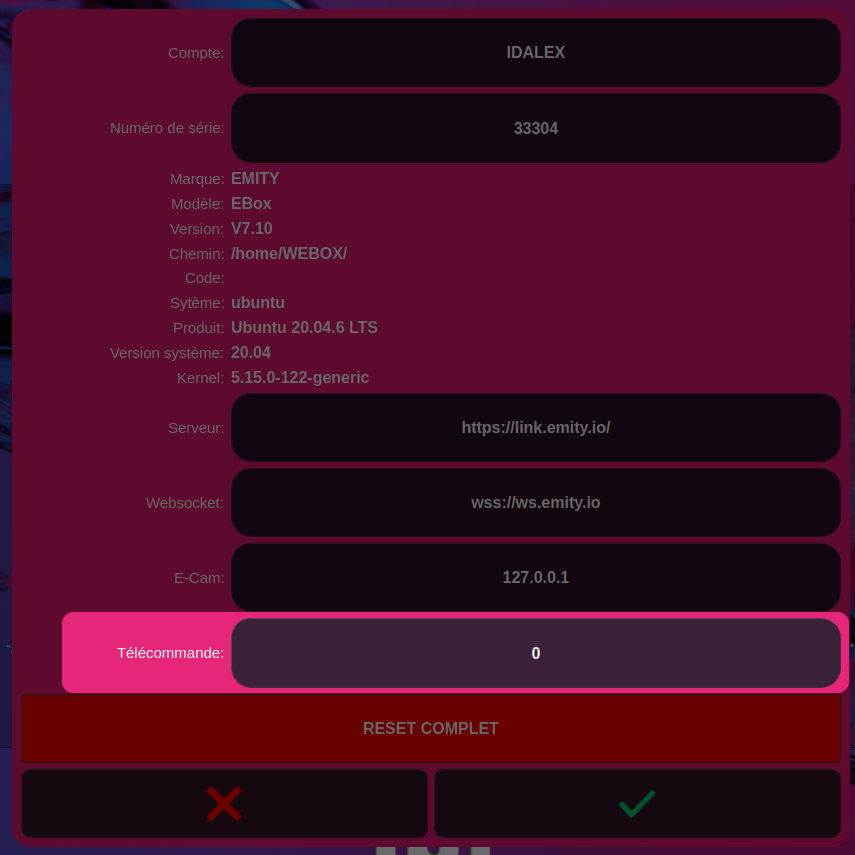
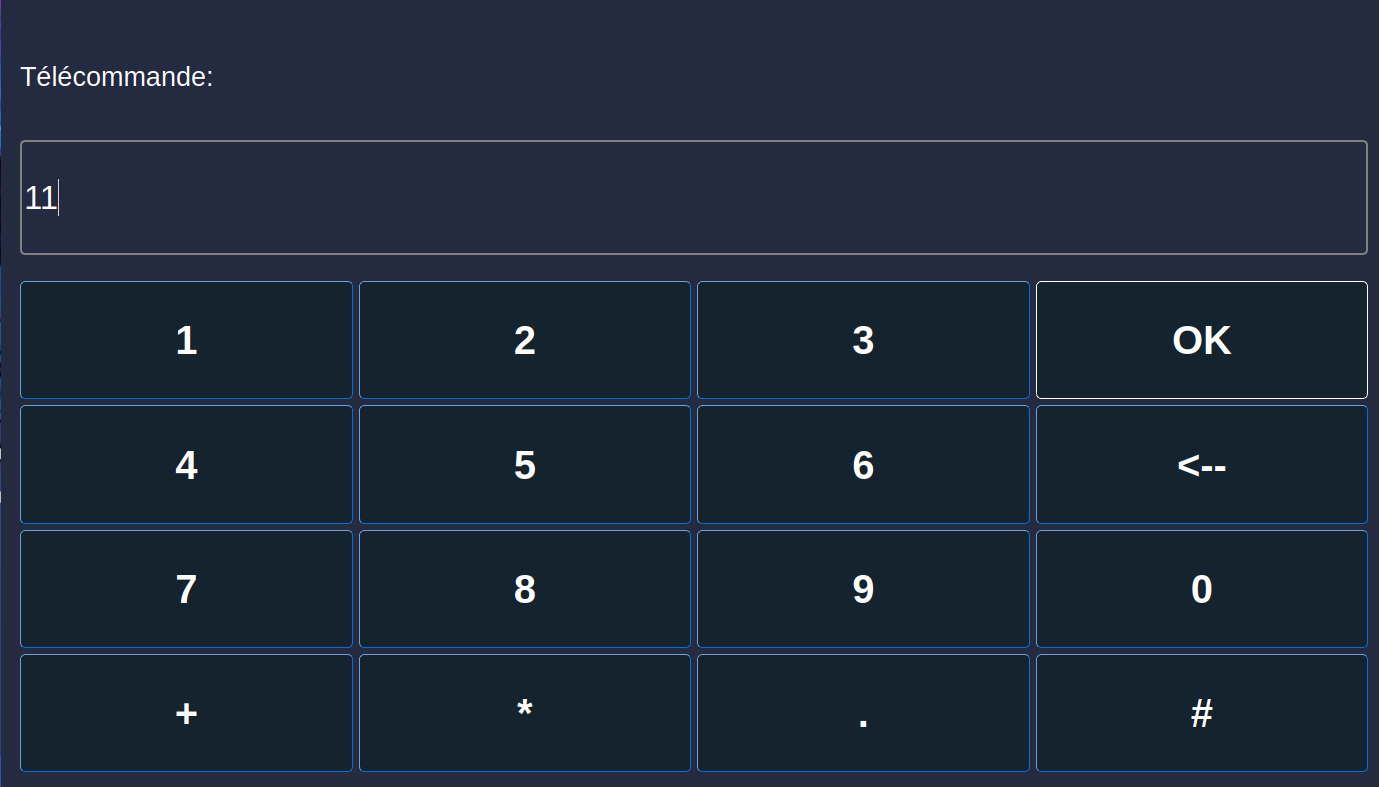
¶ NFC Detection and Product Display via E-Box
Warning: This feature is available only on the Raspberry series!
¶ 1. Introduction
The NFC detection and E-Box display system allows for quick product identification by scanning an NFC chip embedded in or attached to an item. Once detected, the product is recognized by the system, and its information is automatically displayed on a screen connected to the E-Box.
¶ 2. Features
- NFC Detection: Uses a built-in NFC reader to read information from products tagged with NFC chips.
- Information Display: As soon as a product is detected, the system retrieves the relevant information (name, description, price, etc.) and displays it on the screen.
- E-Box Unit: A dedicated unit, called E-Box, houses the NFC system and the screen, providing a compact and integrated solution.
¶ 3. System Architecture
- NFC Reader: NFC component that reads data from the NFC chips on products.
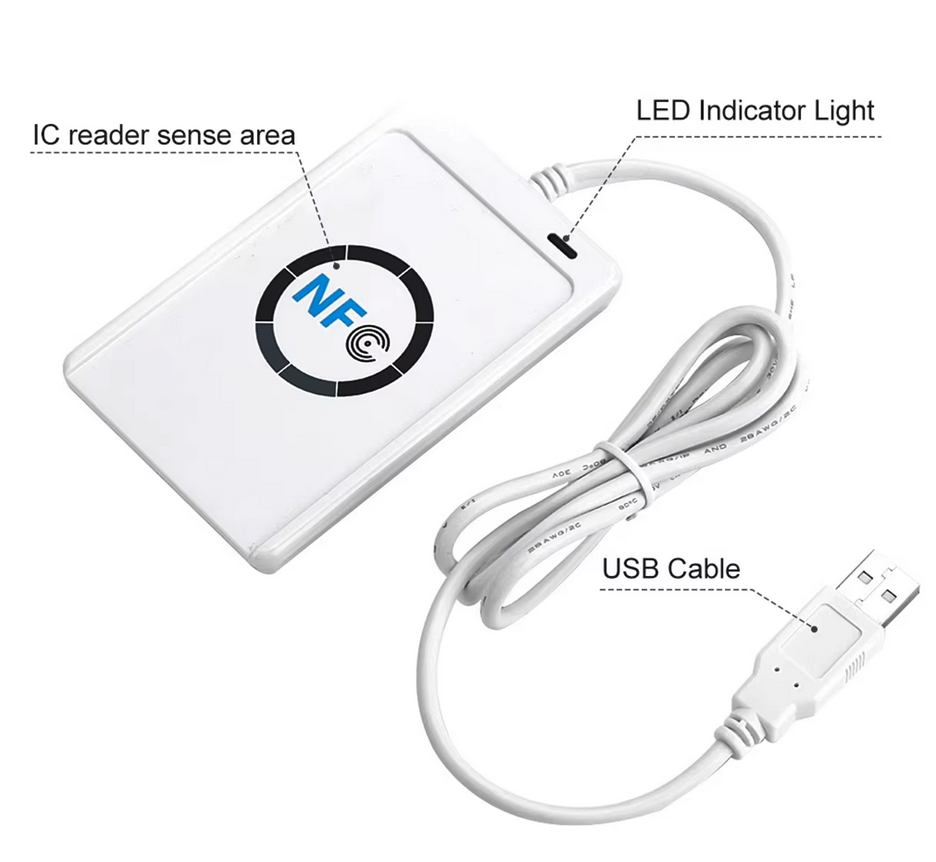
- E-Box Controller: Microcontroller that interprets NFC information and sends the data to the screen.
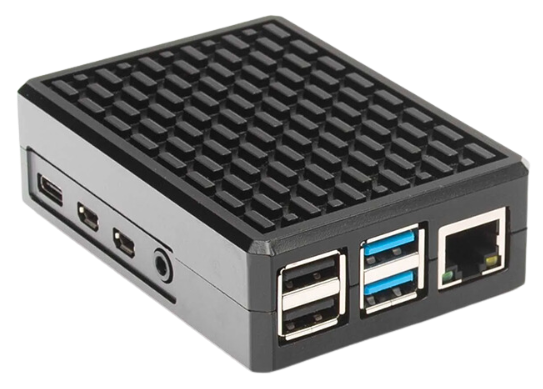
- Screen: Displays the product information in real time, providing a clear view for the user.
.png)
¶ 4. Operating process
- Detection: A user brings a product close to the NFC reader integrated in the E-Box.
- Identification: The NFC reader retrieves the product information.
- Processing: The E-Box controller interprets the NFC data.
- Display: The product information is shown on the E-Box screen, providing a detailed description.
¶ 5. Use case
- Retail: Quick product identification for displaying prices and descriptions.
- Library or Museum: Used to display descriptions of objects or artworks.
This system is particularly useful in environments requiring quick access to product information without manual intervention, providing an intuitive and efficient solution.
¶ 6. NFC Tag Identification
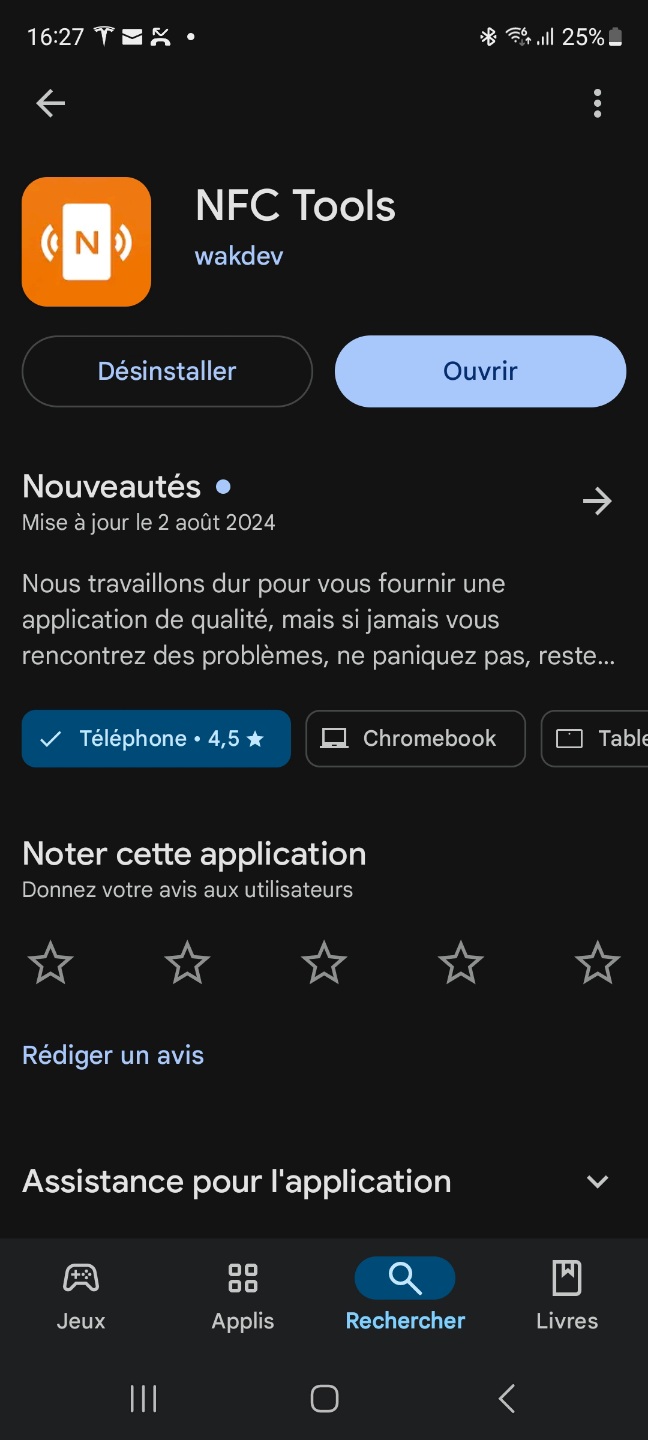
- Download The NFC Tool app:
IOS:
https://apps.apple.com/fr/app/nfc-tools/id1252962749
ANDROID:
https://play.google.com/store/apps/details?id=com.wakdev.wdnfc&hl=fr&pli=1
 |
 |
-
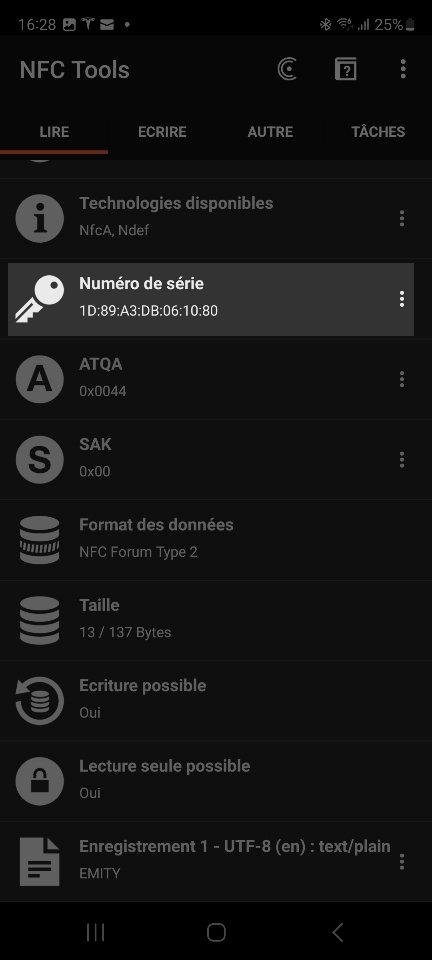
Launch the NFC Tool application
-
Bring an NFC tag close to identify it
The detected serial number is 1D:89:A3:DB:06:10:80
¶ 7. Preparing the playlist in E-Manager
-
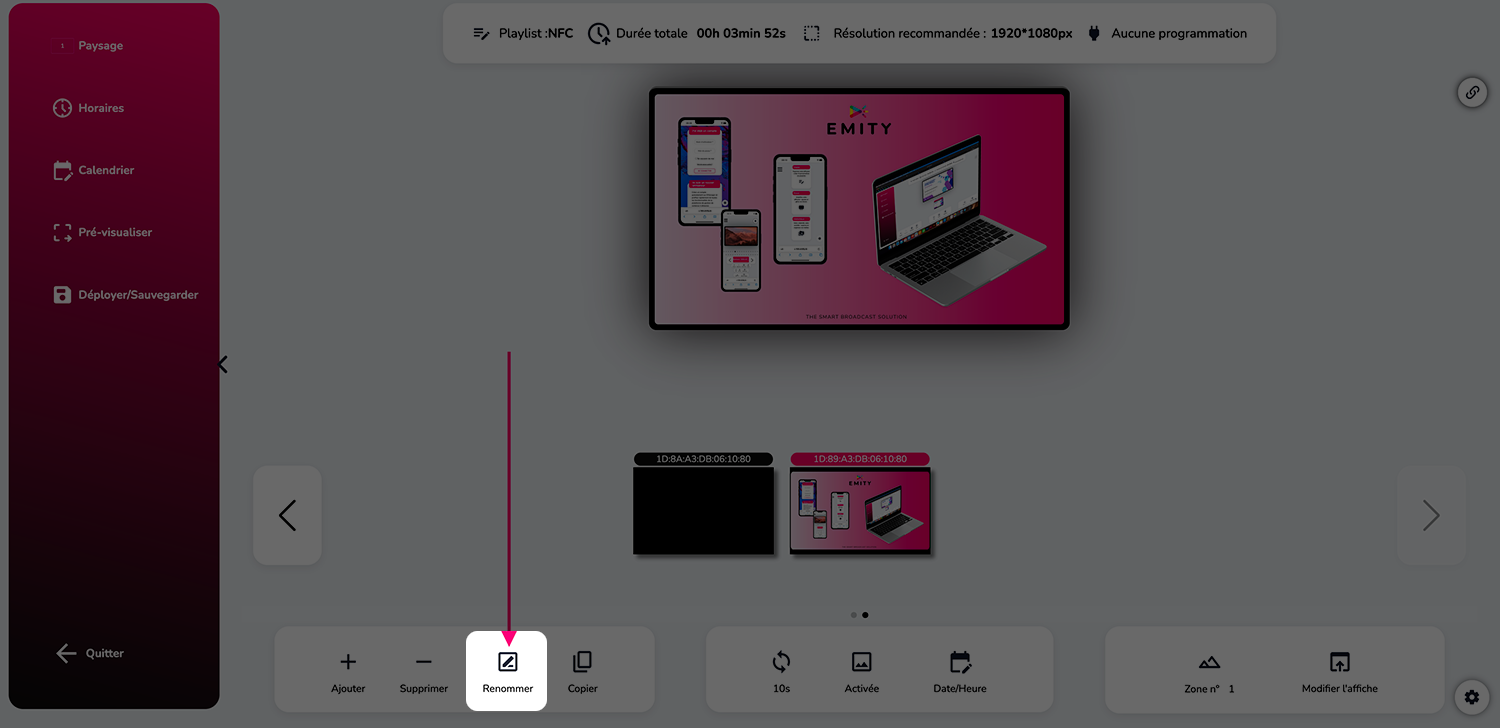
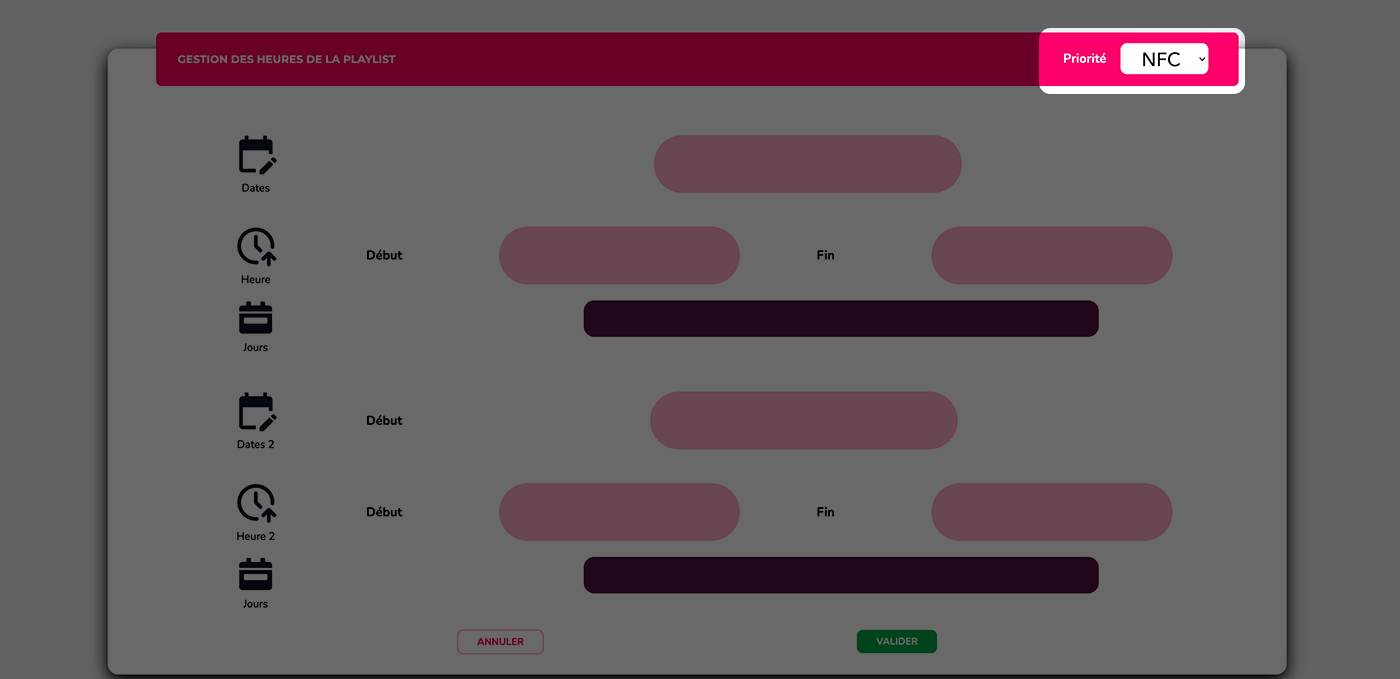
Add a playlist and set the priority to NFC
-
Add a poster with the previously identified serial number