¶ Initialisation
¶ 🔧 Factory Reset
- Press the settings button (
 ) and then go to the Administration menu.
.jpg)
- If options are grayed out or inaccessible, select the Disabled button as shown below and press OK.
.jpg)
- You'll be asked for a password. Enter 000000 if you've never changed it, otherwise enter your password.
.jpg)
- Then select Reset to factory settings and press OK.
-
A confirmation message appears, press Confirm, your TV will switch off.
-
Wait a few seconds, then switch it back on.
.jpg)
-
Select Quick Start, then press START.
.png)
-
On the first line, select the language English, then click SAVE to confirm.
-
On the last line, Power off when no signal, select Disabled
-
Then click Access Settings.
.png)
-
¶ 🔎 Firmware Version Check
- Press the Settings button(), Go in General menu, select System Information then on OK and make sure that the webOS version is at least
4.0.
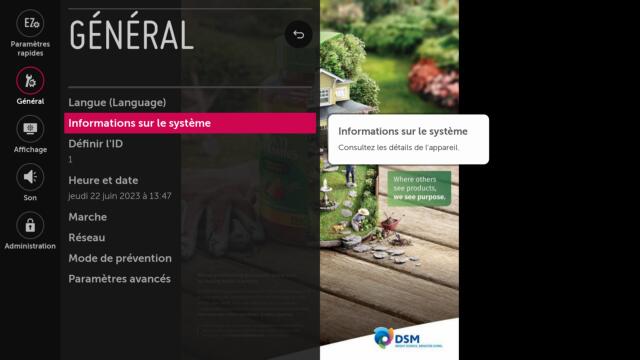

If not, you need to update your firmware.
To do this, start by checking if a firmware with a webOS version of at least 4.0 is available for your device by following the instructions below:
-
Go to the following page (an LG account is required):
https://webossignage.developer.lge.com/firmware/firmware-download/downloading-firmware/
-
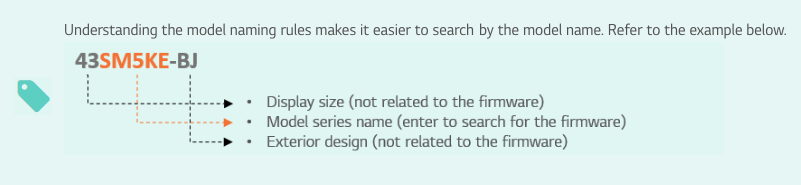
Search the table (by Model name) by entering your TV model name. Make sure to enter only the part in orange, as shown in the image:
-
Use the number before the orange part to find the correct row if there are multiple entries.
If a webOS version equal to or higher than 3.2 is available, click "Download" (note: the file is large).
9 -To proceed with the installation, follow the procedure described in the link below (you will need a USB drive):
https://webossignage.developer.lge.com/firmware/firmware-update/updating-firmware/#updating-firmware
¶ Configuration
¶ 🌎 Connect to the Internet
If your TV is connected with an Ethernet cable, you can skip to the next step. Otherwise, follow the instructions:
- Go to the general menu, select Network, then pressOK.
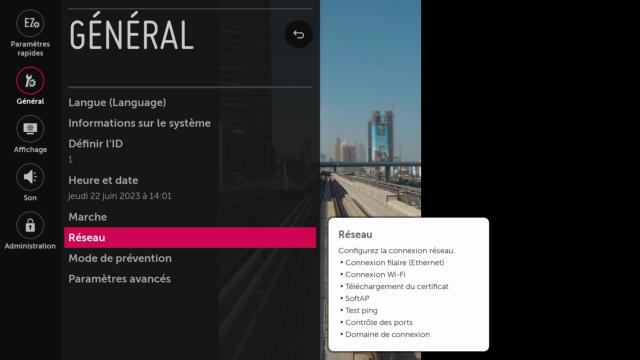
- Select Wi-Fi Connection, identify your Wi-Fi access point, then pressOK.
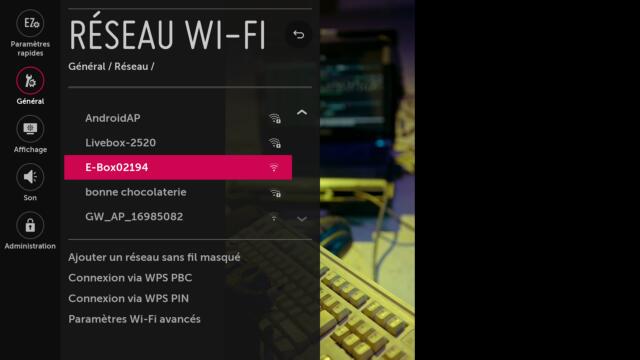
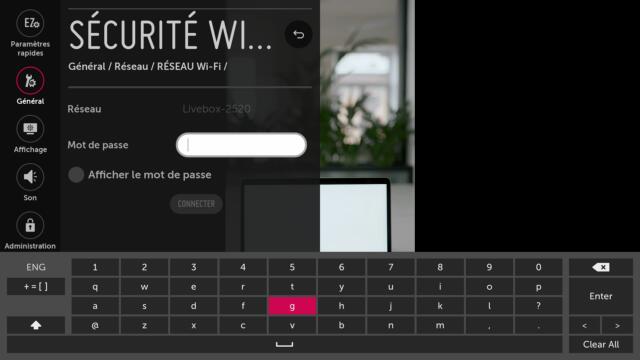
- Enter your password, then select Connect and press OK
¶ 🕰 Date and Time Settings
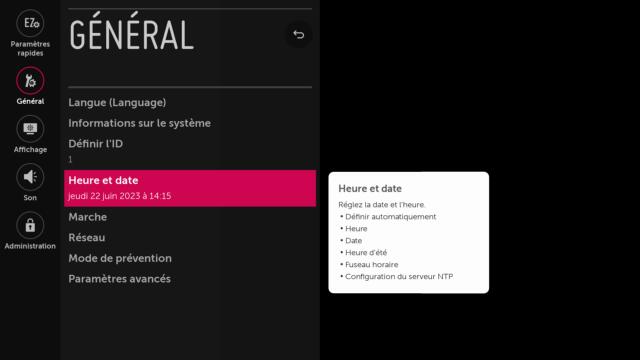
1 - Press the Settings button(),Press the Settings button, go to the General menu, then select Time & Date by pressing OK.
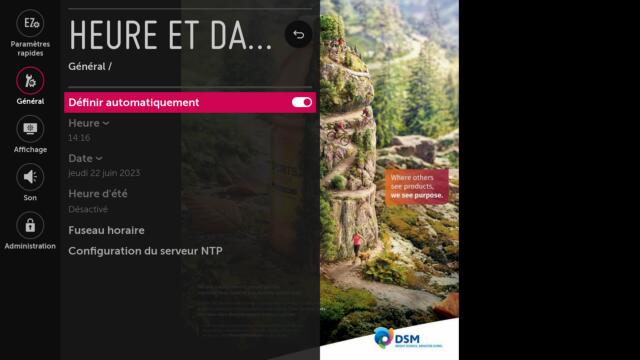
- Make sure Set Automatically is enabled, then select the correct time zone (make sure to set all three fields: Continent - Country - City)
¶ Disabling Quick Start
On some screen models, the Quick Start mode can prevent the screen from fully turning off, so it must be disabled.
-
Press the Settings button (
) Then, in the General tab, select Power. -
Uncheck Quick Start
¶ Installation
¶ 📦 SI Server Configuration
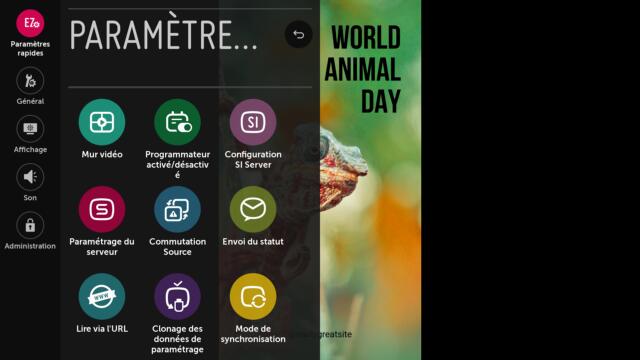
- Press the Settings button () Then, in the Quick Settings tab, select SI Server Configuration.
-Do the same in the selection menu that appears.
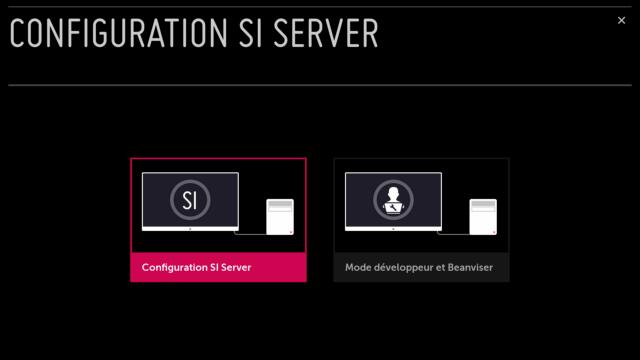
2.Make sure the Fully Qualified Domain Name setting is enabled.
- In the associated text field, enter the following link: **_https://lg.emity.io/com.lg.app.signage.ipk_**
.jpg){.elevation-3 .radius-5}
- On the Application Launch Mode line, select Local and press <kbd>OK</kbd>
.jpg){.elevation-3 .radius-5}
- On the **Application Type** line, select **IPK** and press <kbd>OK</kbd>
.jpg){.elevation-3 .radius-5}
- On the **Local Application Upgrade line**, select **Remote** and press<kbd>OK</kbd>
.jpg){.elevation-3 .radius-5}
Once the procedure is complete, restart your device. A notification will appear in the top-right corner indicating that the application is being installed. This process may take a few minutes. Once finished, the EMITY application will appear on your home screen.
¶ 📅 Power On and Off Configuration
The screen’s power-on and power-off schedules can be set on the Emity web platform; however, they control the display panel’s on/off state and not the screen’s main power supply.
Therefore, to ensure the proper functioning of the application and always have the latest version up to date, we also recommend scheduling complete screen shutdowns during long periods when it will not be in use.
- Press the Settings button()Then, in the Quick Settings tab, select Scheduler On/Off
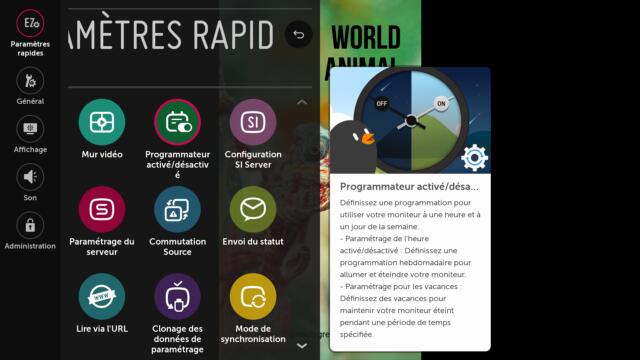
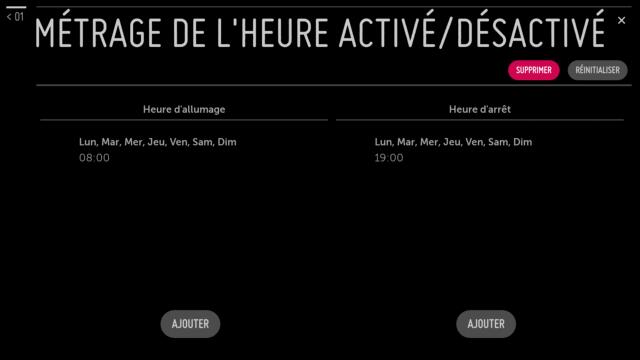
- Then select Time Setting On/Off
.jpg)
- Set the power-on and power-off times.
.svg.png)