This screen is not compatible with the Emity application and requires an E-Box player.
¶ Installation
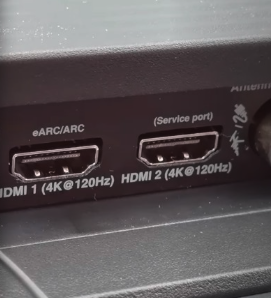
- During the installation of the EMITY player, make sure to connect the HDMI cable to input 2 on the TV, labeled SERVICE.
¶ Settings
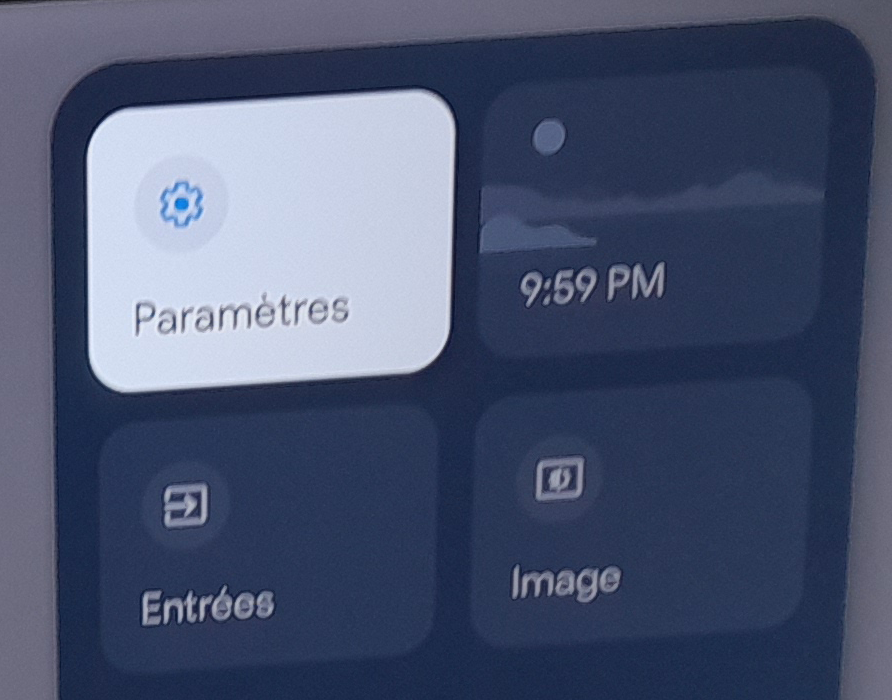
- Click on the button ⚙️ using your remote, then go to the Settings menu:
¶ 🖥️ CEC
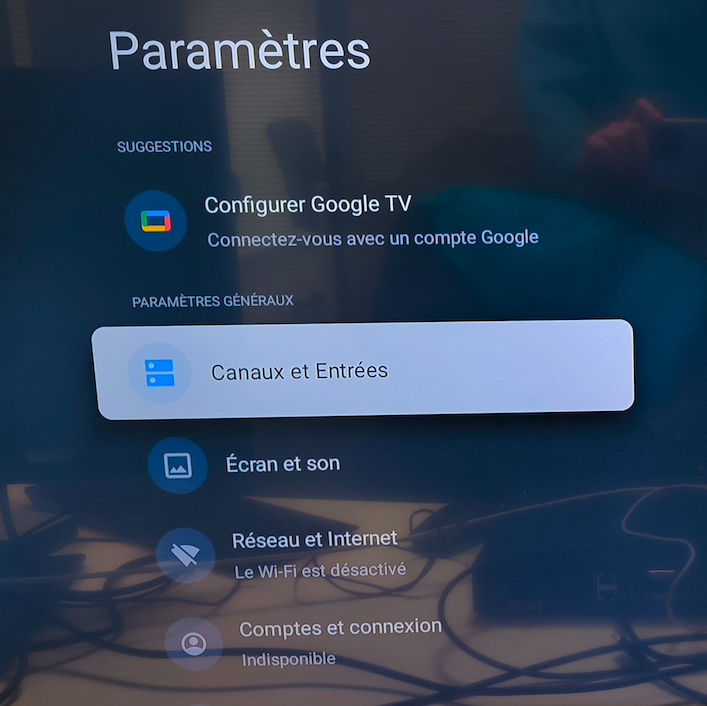
- Press the Channels & Inputs category:
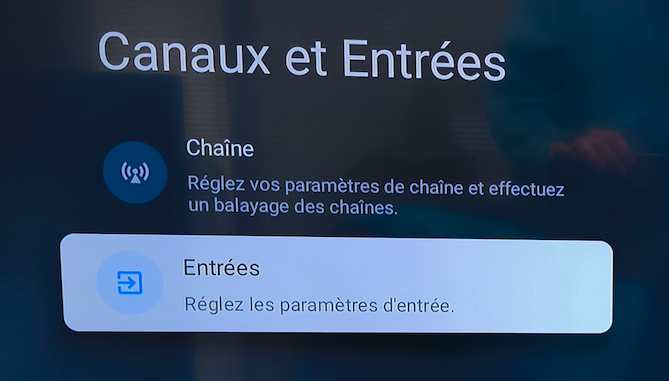
- Then Enter:
- Enter:
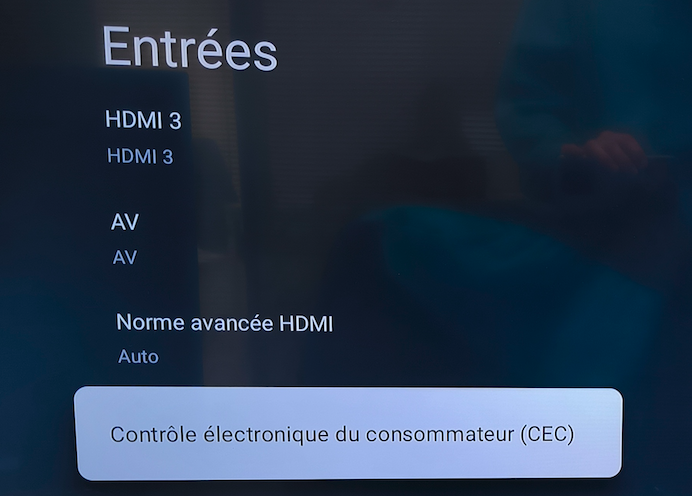
- And check the 3 options as shown below:
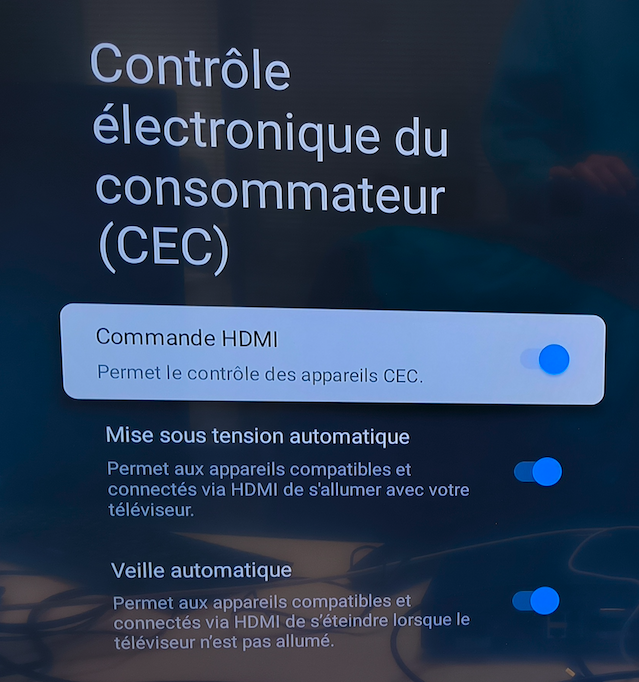
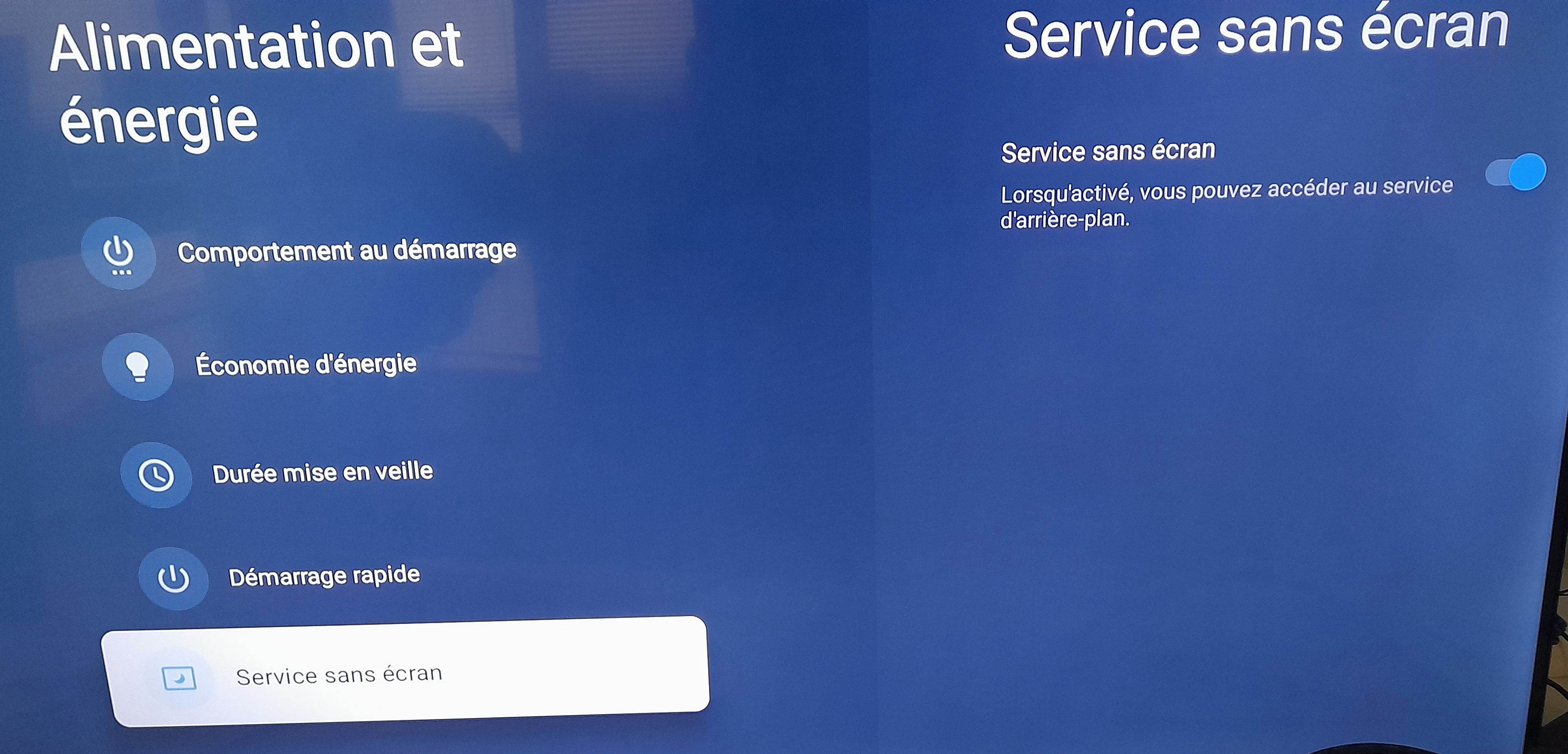
¶ 🪫 Power & Energy
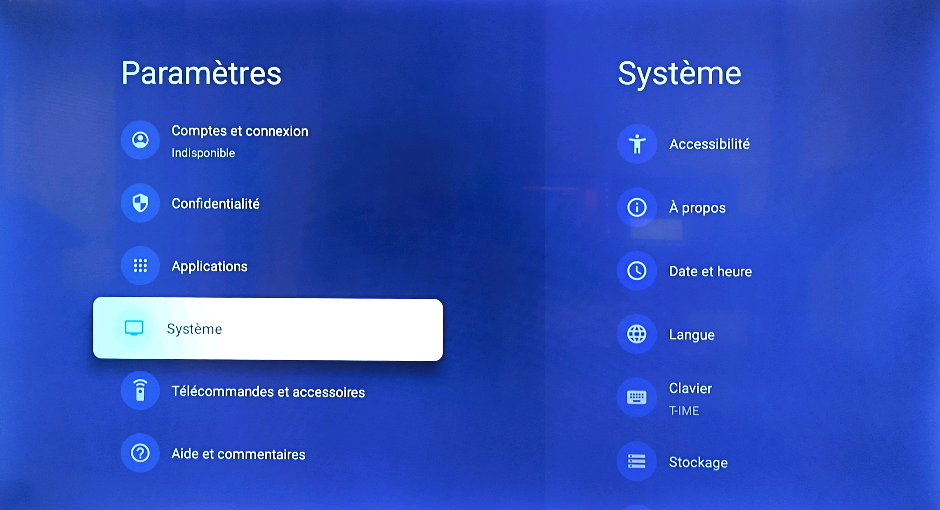
- Press the System category:
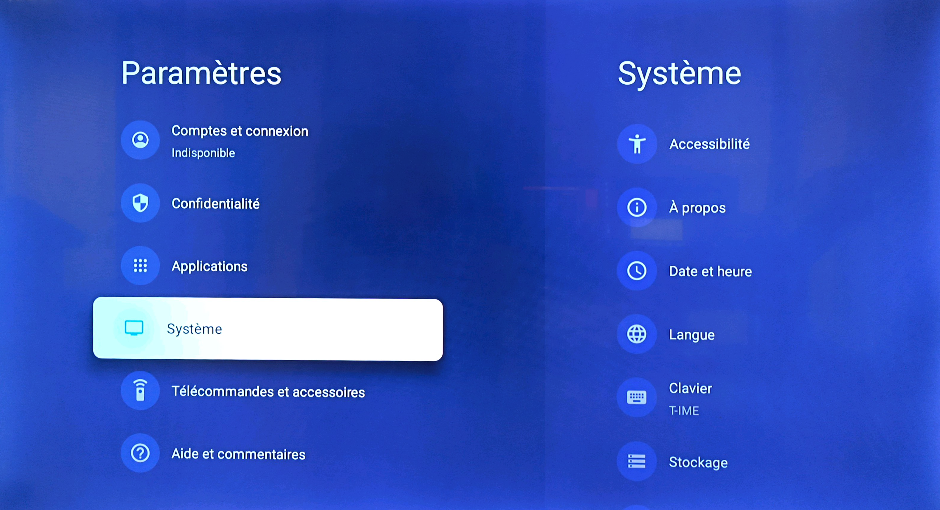
- Then Power & Energy:
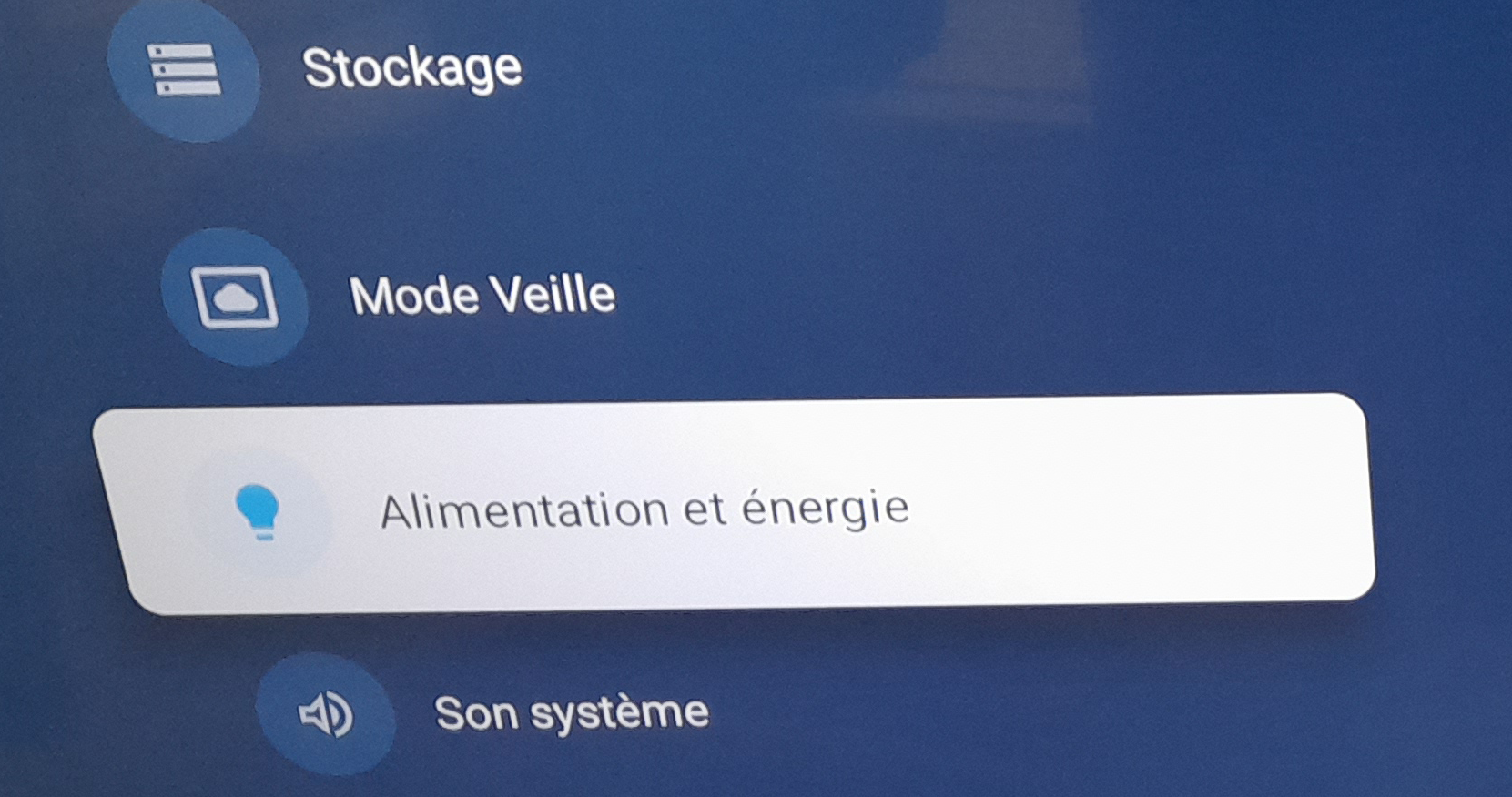
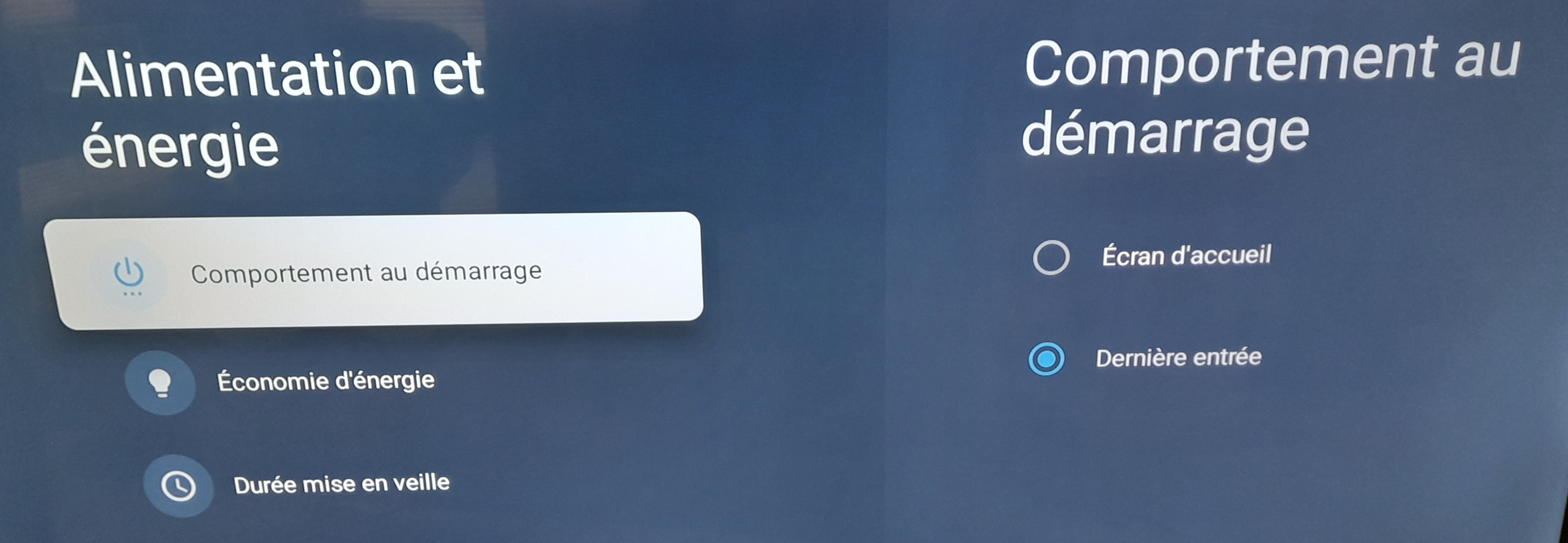
¶ Startup Behavior
- In the Startup Behavior menu, select Last Input.
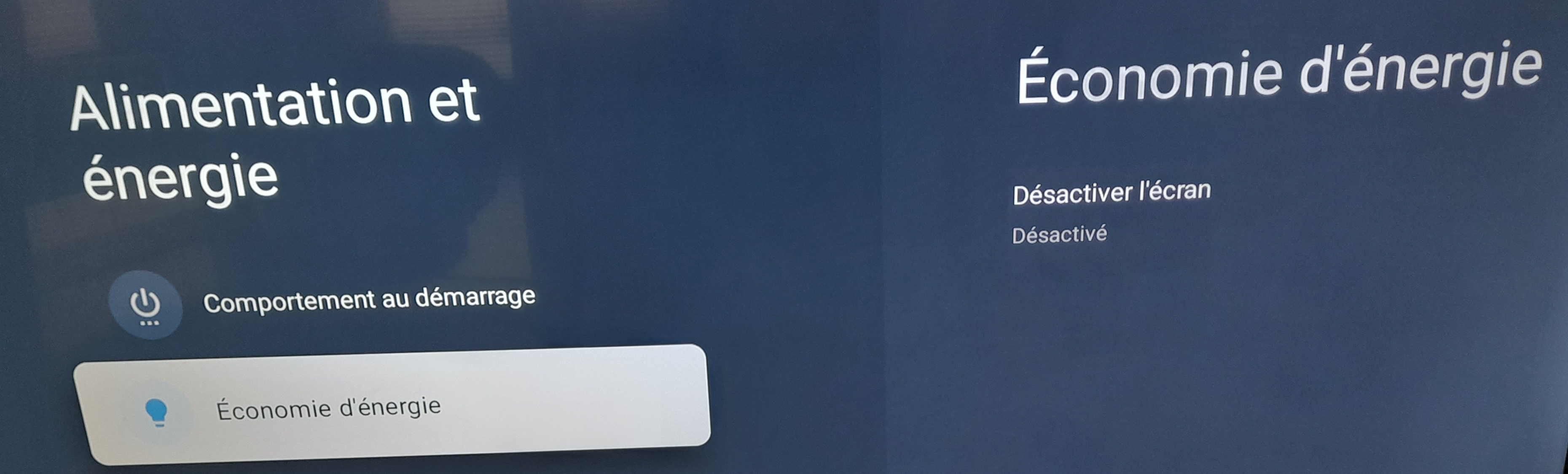
¶ Energy Saving
- In the Energy Saving menu, select Off.
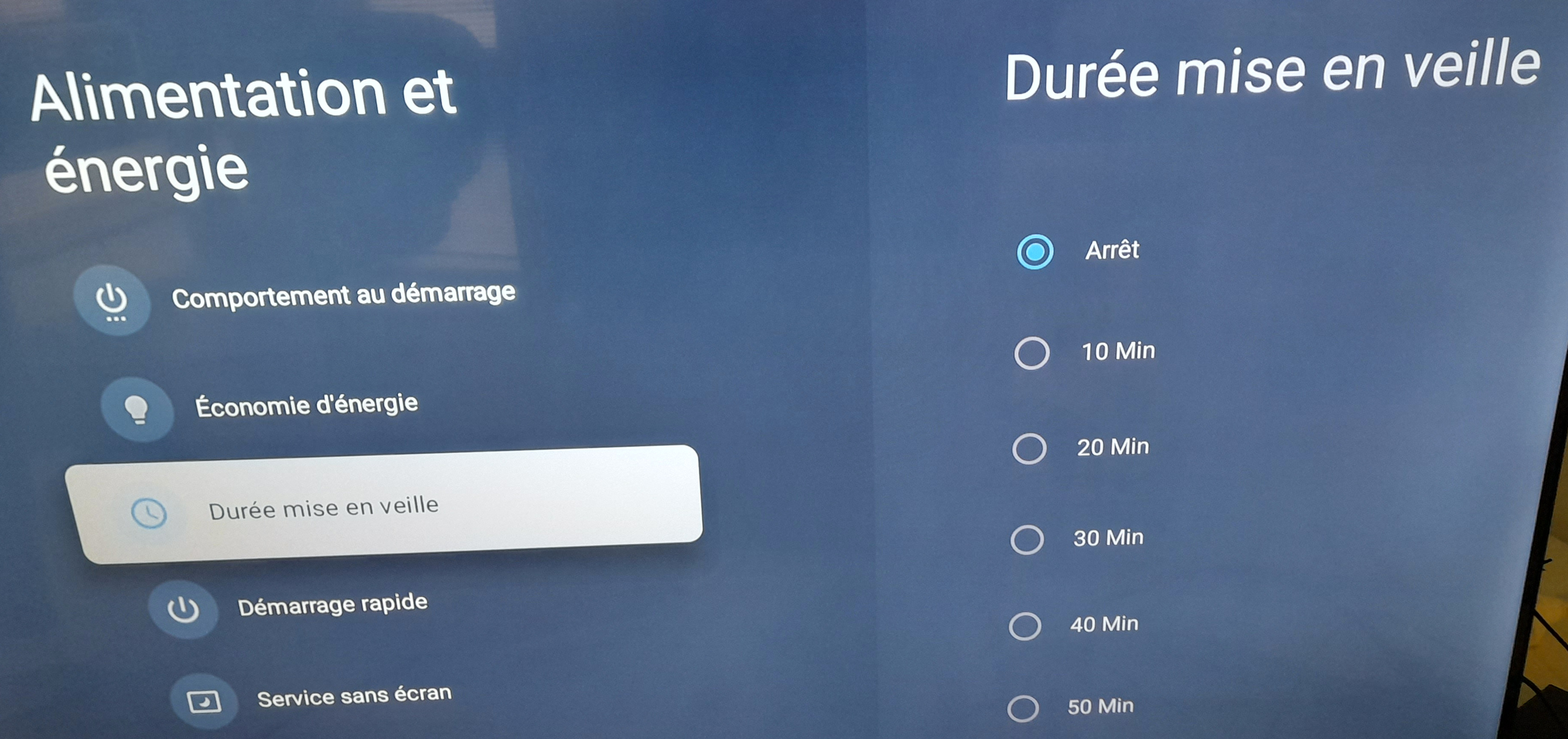
¶ Screensaver duration
- In the Screensaver menu, select Off.
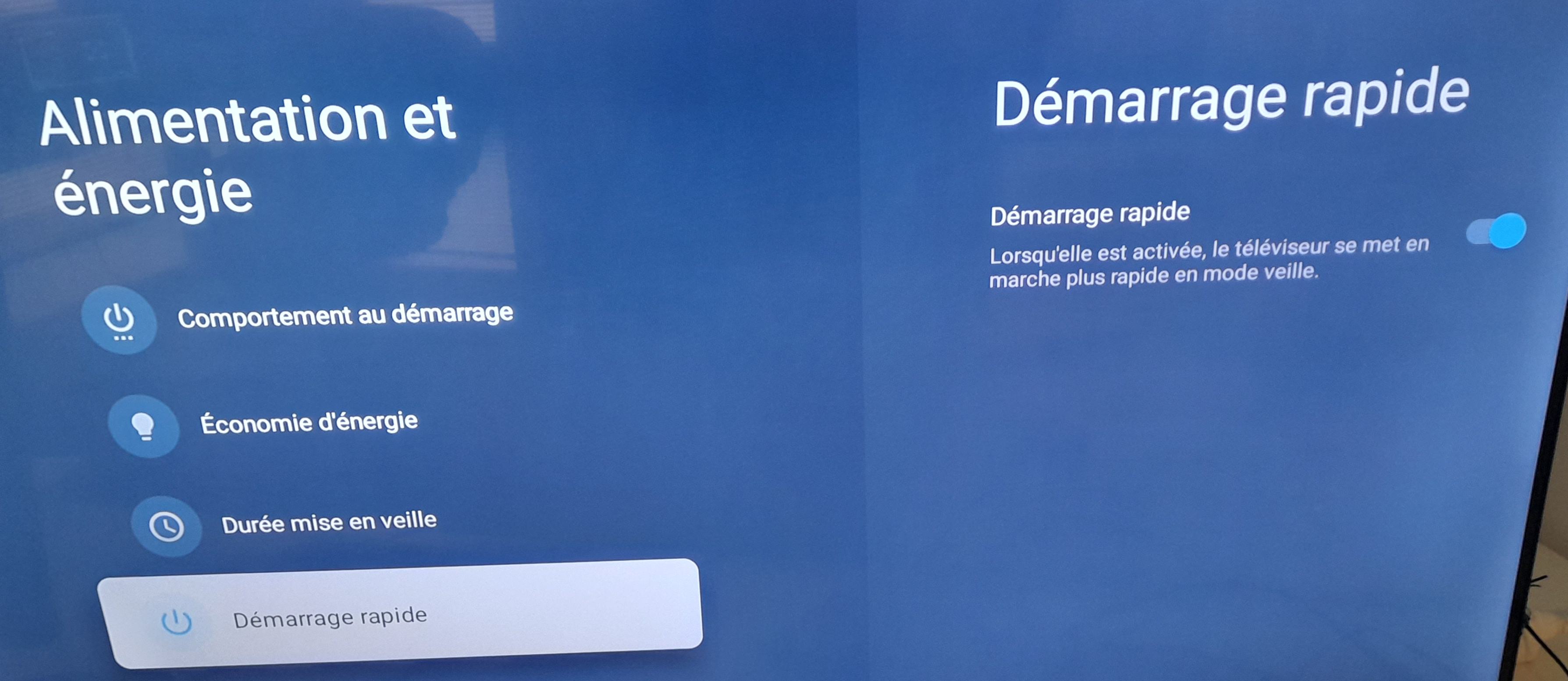
¶ Quick start
- In the Quick Start menu, enable the option.
¶ No screen service
- In the menu No screen service, activate the option.
¶ ⭐ Always active screen
- Go iin the Settings menu.
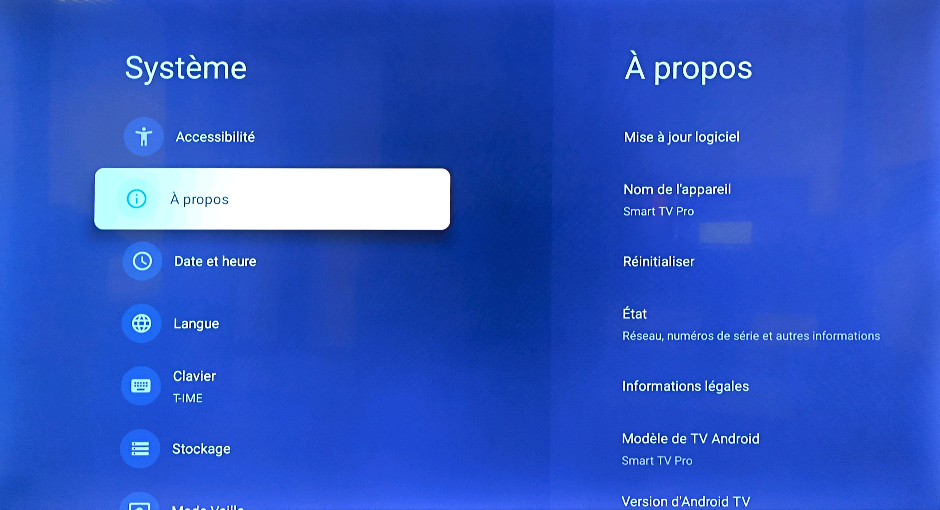
- Then About
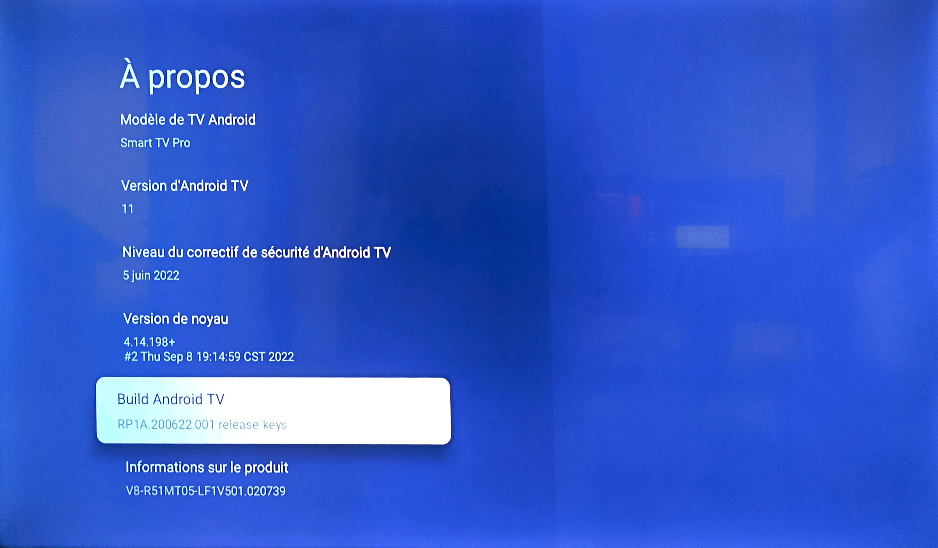
- Select Build Android TV and click on OK multiple times until you get You are now a developer message.
- In the System, go in Developer Options.
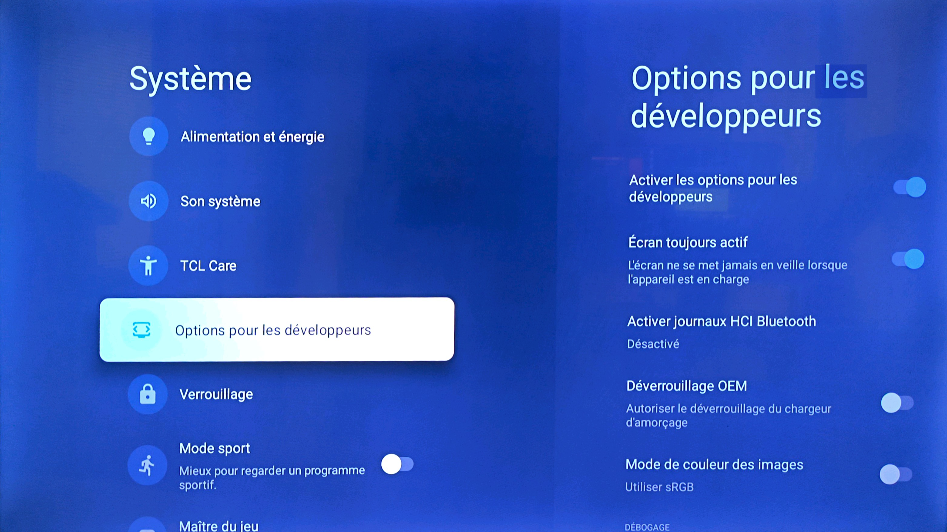
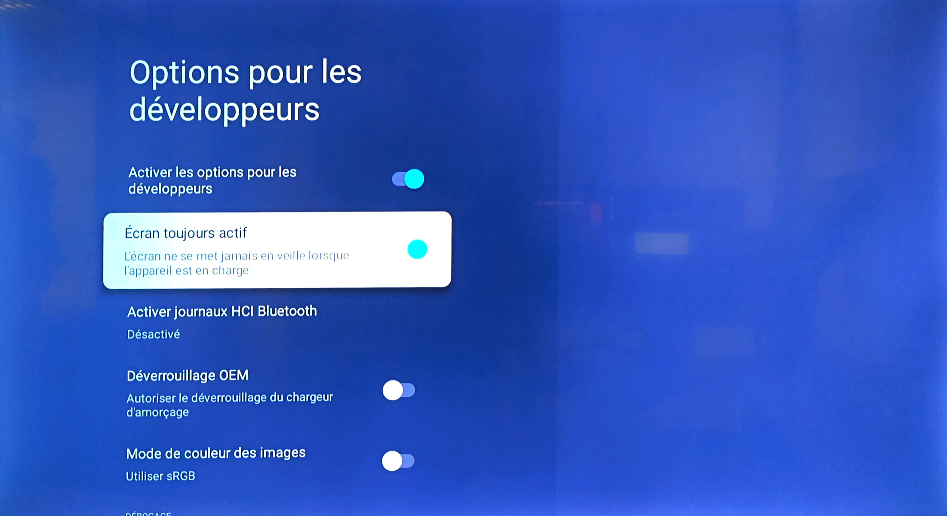
- Finally, enable the Stay Awake option.
You have completed the screen setup. If you encounter any issues during installation or have any questions, please do not hesitate to contact our technical support at 04 30 00 66 01.