¶ Initialisation
¶ 🔆First Startup
- Choose a language, then click Start.

- Select “Manual Setup” and then click Next.

- Enter a name of your choice for this screen, then click Next.

- Select Ethernet, then click Next.

1. Main switch: Select Enable, then click Next.
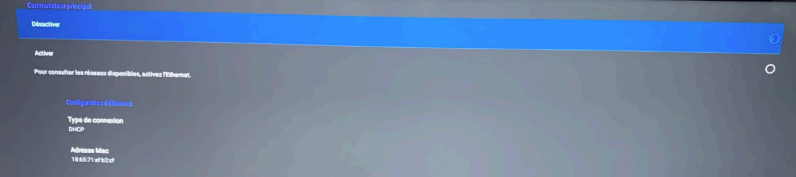
- Select USB Storage Memory, then click Next.

¶ Installation
¶ ⚡ Downloads
Download the APK files using the links above, then copy them to a USB drive.
¶ ⚙️ Android Mode Setup
- At the screen startup, press HOME, then enter the sequence 1 6 6 8 on the remote control.
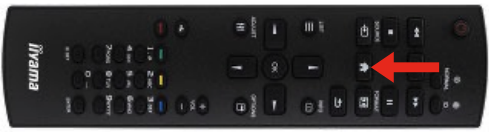
- After this procedure, the screen should display:

¶ 🔩 Installation of TeamViewer
To install the applications, click on the File Explorer (Storage), then select your USB drive.
Install using the EXTENSION (Allow to install).
Click “Open” at the end of the installation.
Retrieve the connection ID and provide it to our technical support at 04 30 00 66 01; we will assign the device.
¶ 🔩 Installation of E-Box/E-Switch
To install the applications, open the File Explorer (Storage), then select your USB drive.
Install E-Switch. At the end of the installation, press OK to prevent the software from launching.
Do the same for E-Box.
¶ Configuration
¶ ⏰ Screen Power On/Off Settings
Press the button, then go to Advanced Options → Date & Time. Make sure the “Auto Sync” option is enabled.
You can then set the operating schedule (Advanced Options → Calendar). It is very important to select Custom in the Entry menu of the calendar.
¶ ⚙️ Application Launch Settings
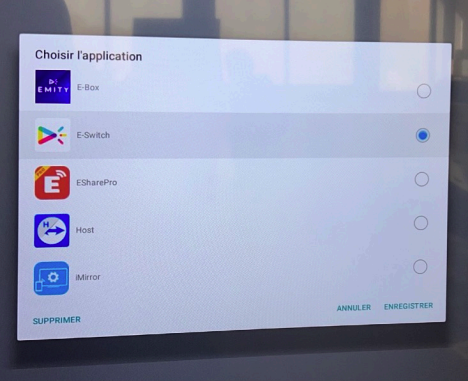
Go to the Android menu, then Digital Signage. Select “Customize Application.”
Select E-SWITCH, then save.
- Finally, press the button, then select Configuration 1. Select Startup Source, click Enter, and choose Custom.
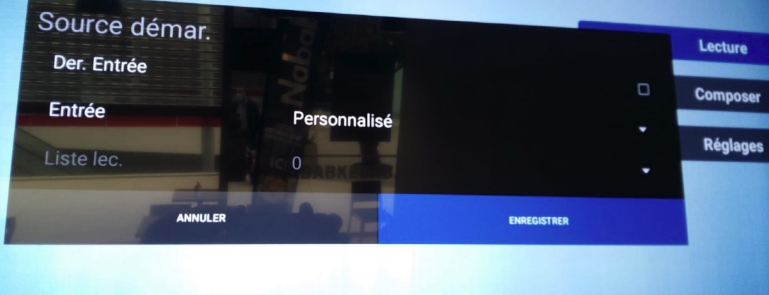
Restart the screen. The software will launch automatically. You must allow E-Switch to access the system by pressing “Allow.”
You have completed the screen setup. If you encounter any issues during installation or have any questions, please do not hesitate to contact our technical support at 04 30 00 66 01.