¶ ProDVX APPC Installation
This documentation describes the complete installation of a ProDVX Android Panel PC (APPC range), from the first startup to the commissioning of the EMITY applications.
Reference models
The procedure was tested on the APPC-10SF (10" Panel PC) and APPC-13XP (13" Panel PC Flex) models, running Android 13 (ProDVX firmware R23). It remains valid for the other sizes in the APPC range. The screens and labels may vary slightly from one model to another.
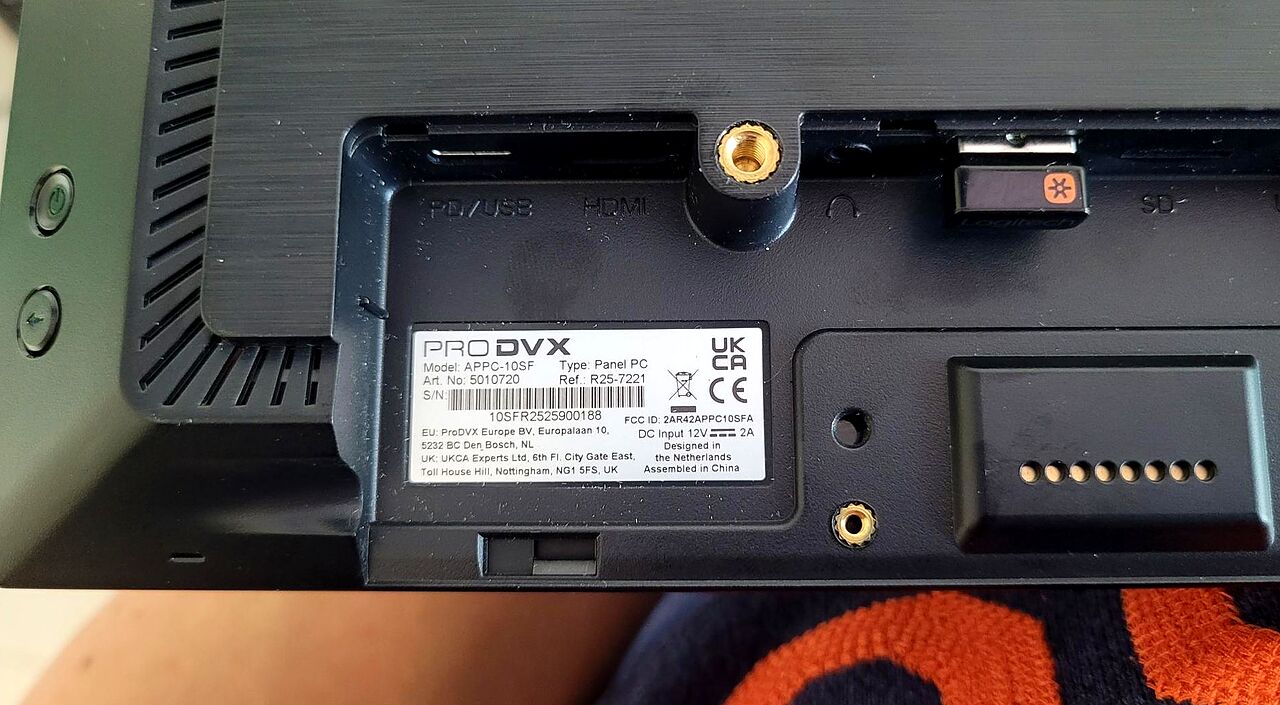
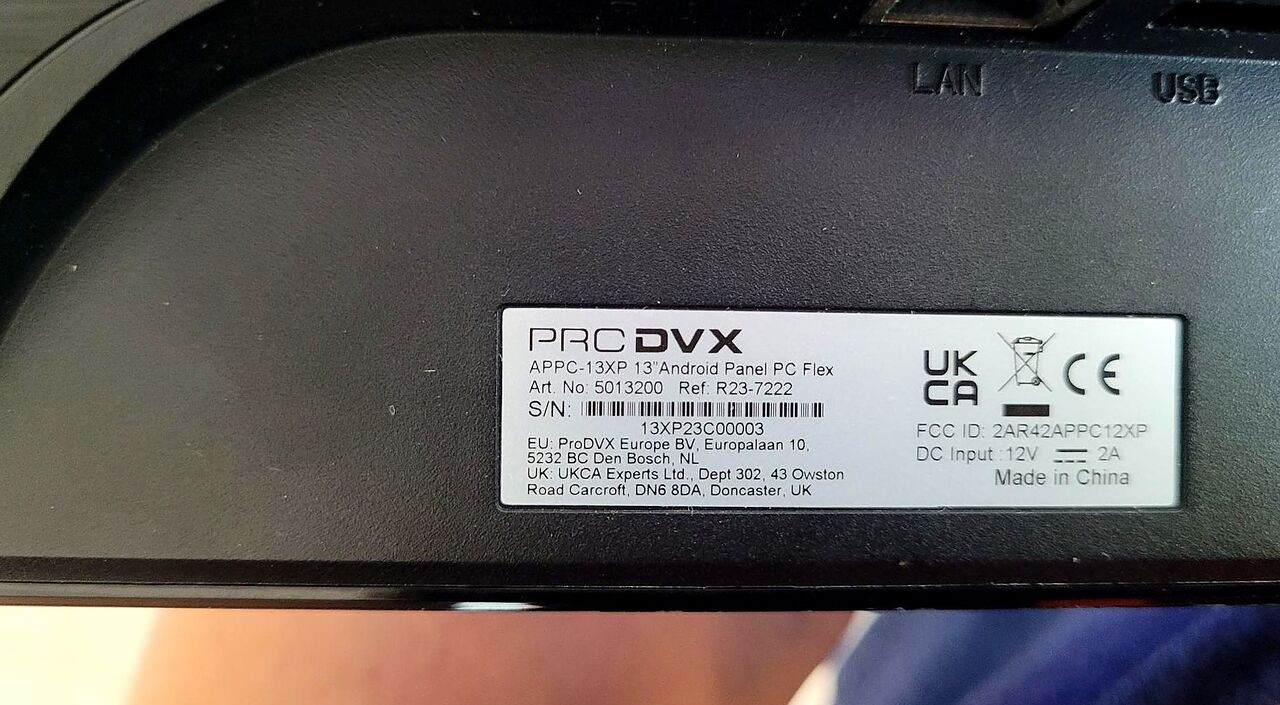
Follow the steps in order. Each section corresponds to a major phase of the installation.
To prepare before starting
The ProDVX Panel PC and its power supply (12 V / 2 A)
Network access (Ethernet cable or Wi-Fi) — credentials within reach
The E-Service and E-Box installation files
¶ 1. First startup
At the first power-on, the ProDVX boot screen appears, then the configuration wizard launches automatically. Navigation is by touch.
¶ 1.1 Welcome screen and terms of use
The « Welcome » screen appears.
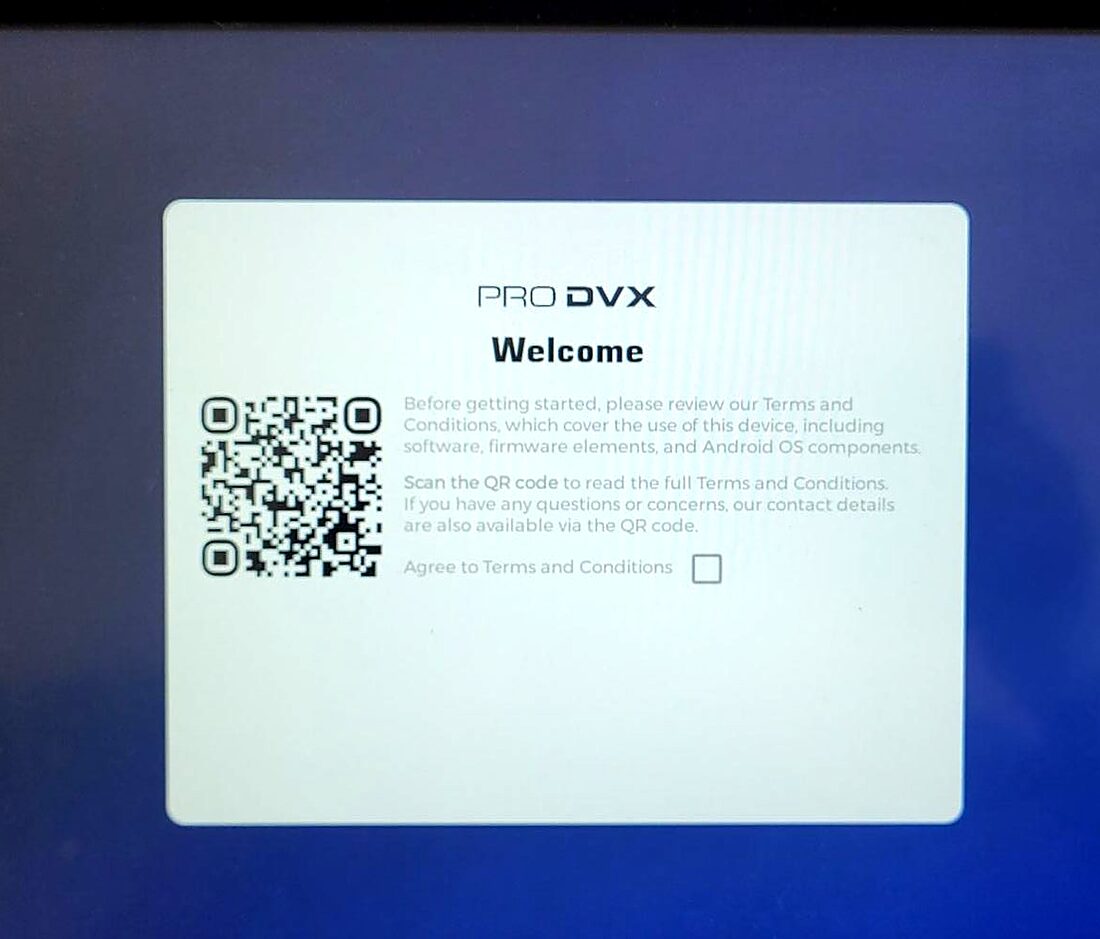
- Tick the Agree to Terms and Conditions box.
- The Network setup link (top right) lets you configure the network right away if needed.
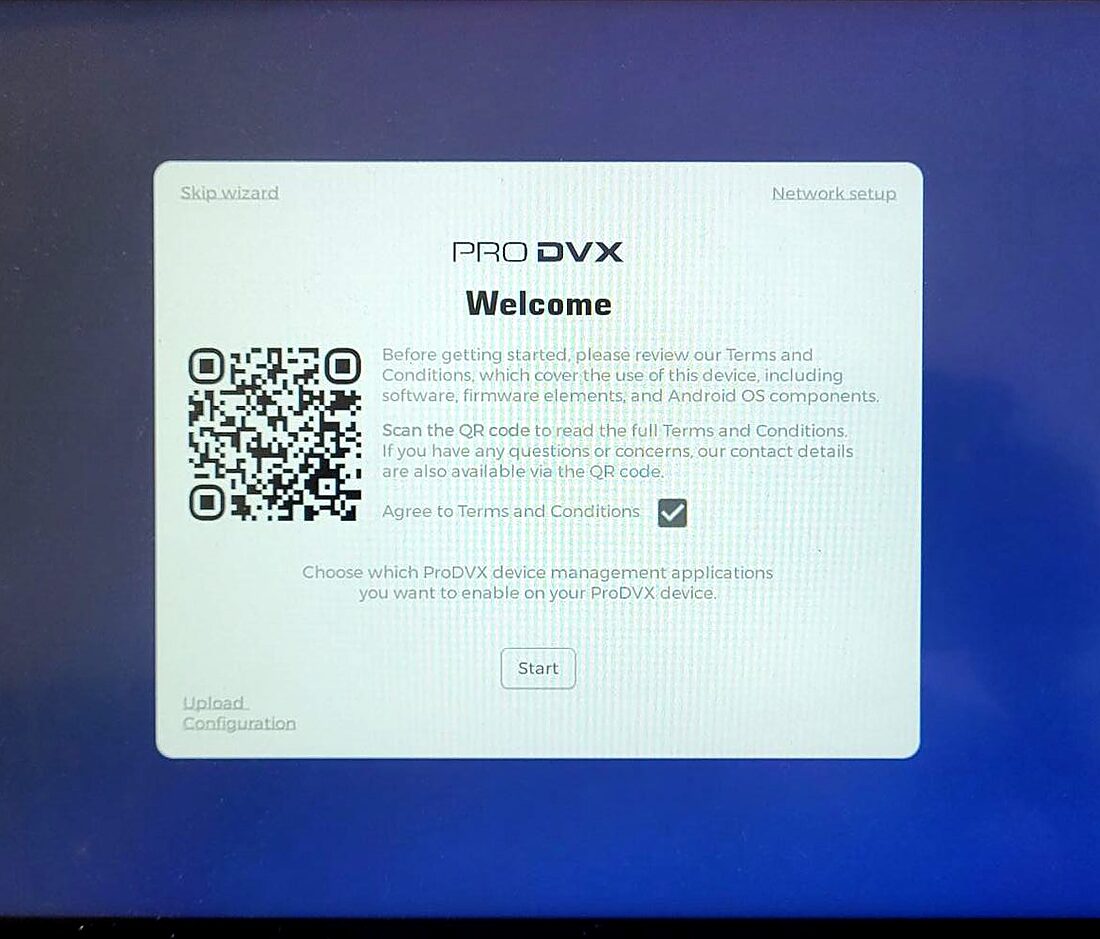
- Click Start.
¶ 1.2 ProDVX API
« PRODVX API » screen. This service links the applications to the ProDVX hardware.
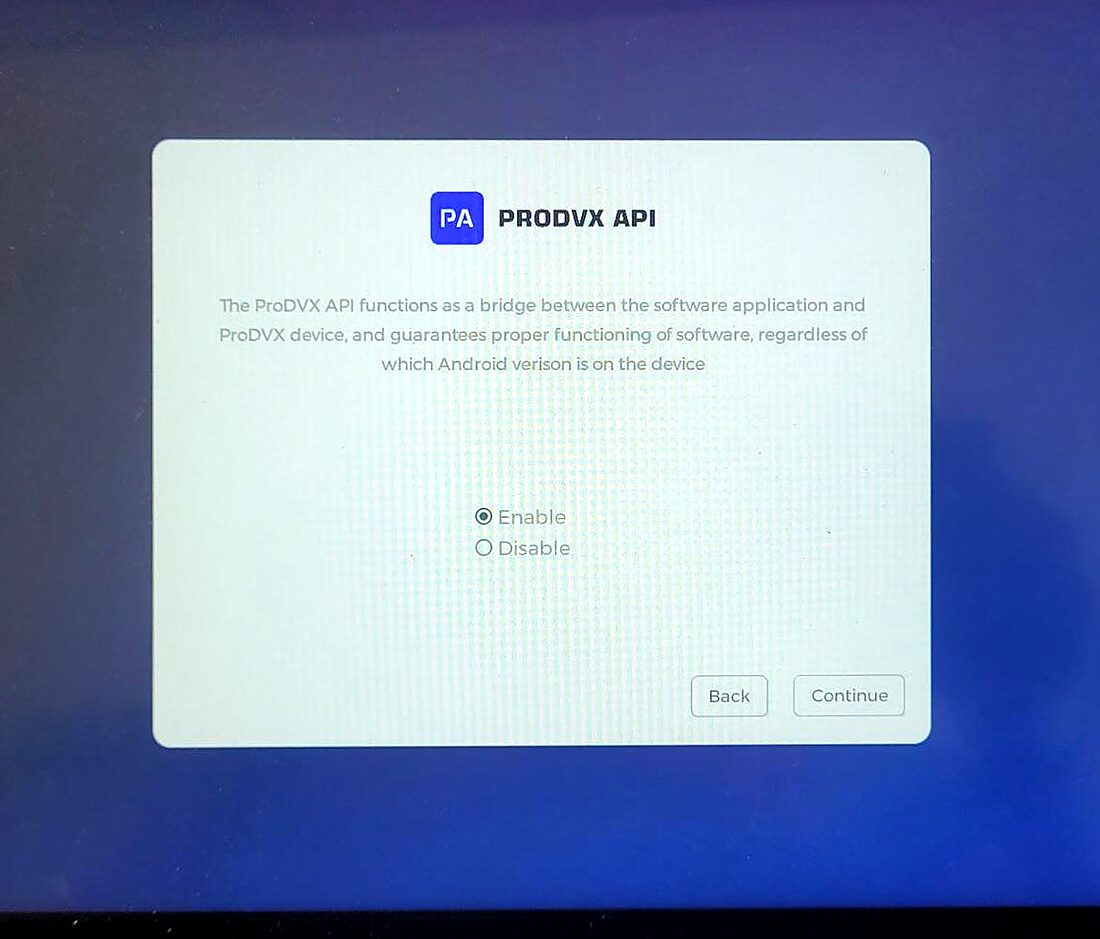
- Select Enable, then Continue.
¶ 1.3 ProMGR
« PROMGR » screen. This is ProDVX's remote management tool, which is not needed with E-MANAGER.
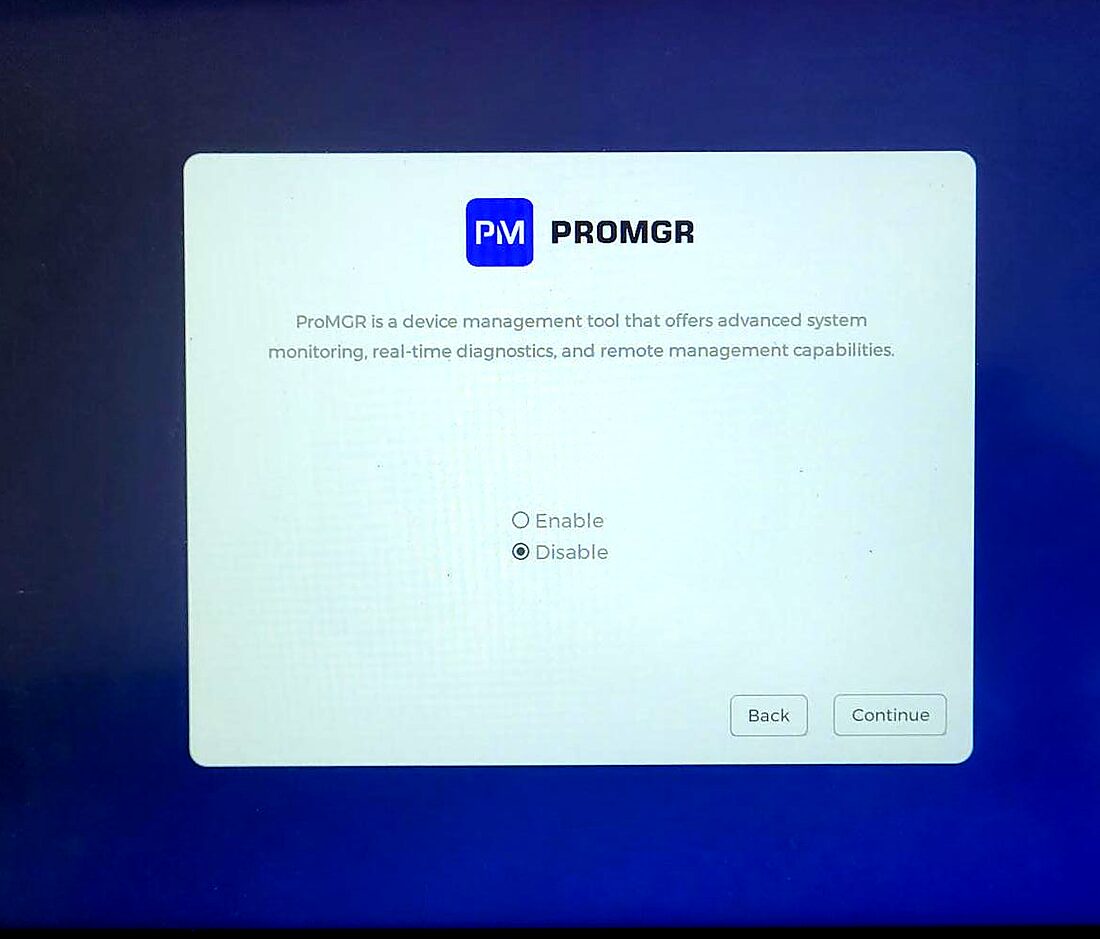
- Select Disable, then Continue.
¶ 1.4 Autostart
« Autostart » screen. When enabled, this function launches Chromium at startup, which would conflict with E-Service.
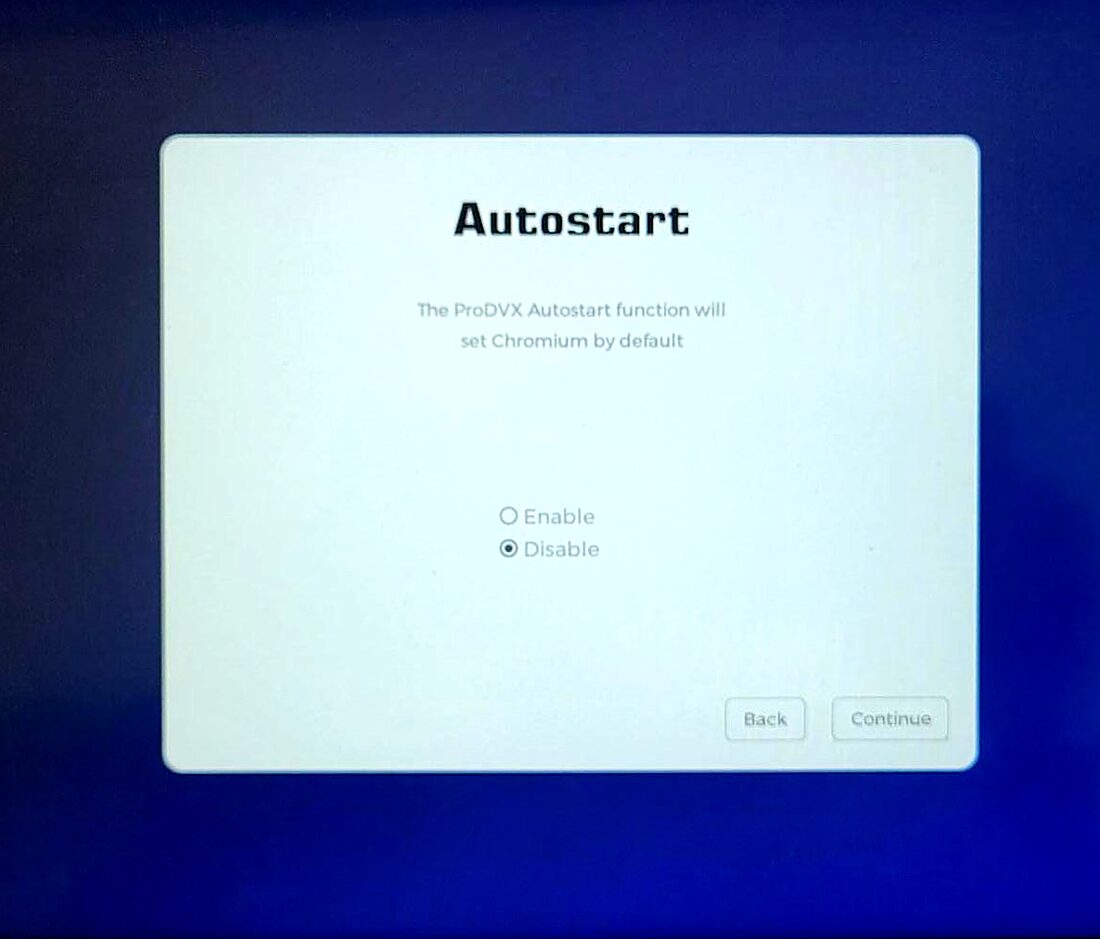
Select Disable, then Continue. E-Service automatic launch is configured in section 4.
¶ 1.5 Sleep mode
« Screen timeout » screen.
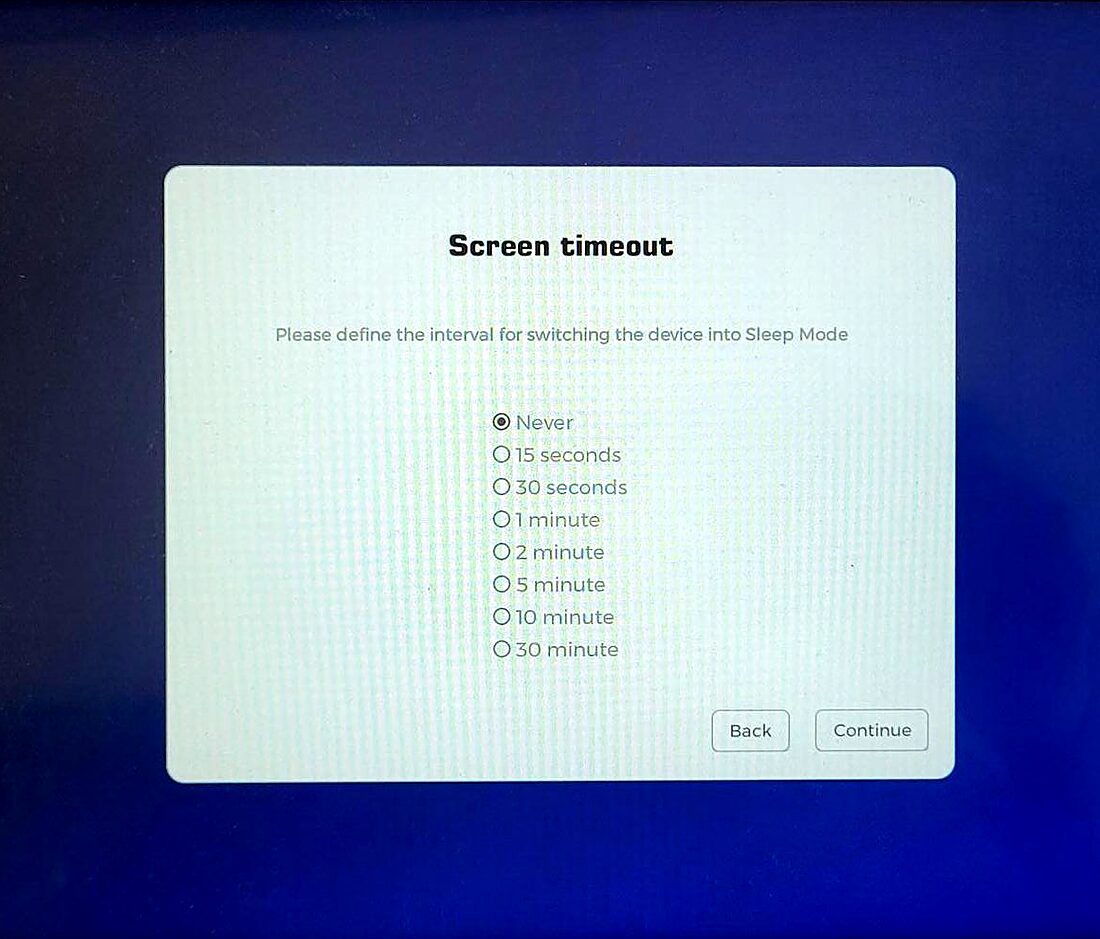
- Select Never so that the screen never goes to sleep, then Continue.
¶ 1.6 End of the wizard
« Success » screen.
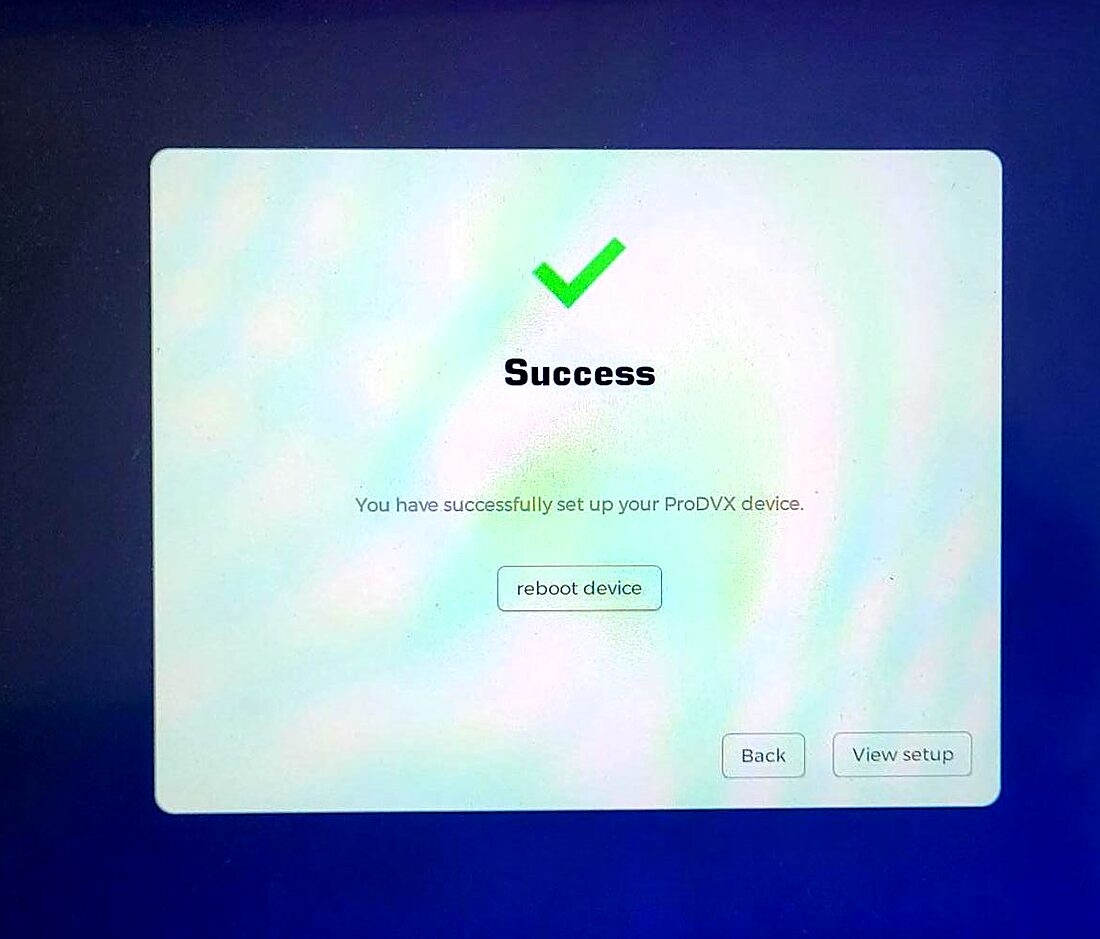
- Click reboot device to restart the Panel PC.
¶ 2. Network connection
If the network was not configured in the wizard, open Settings → Network & internet.
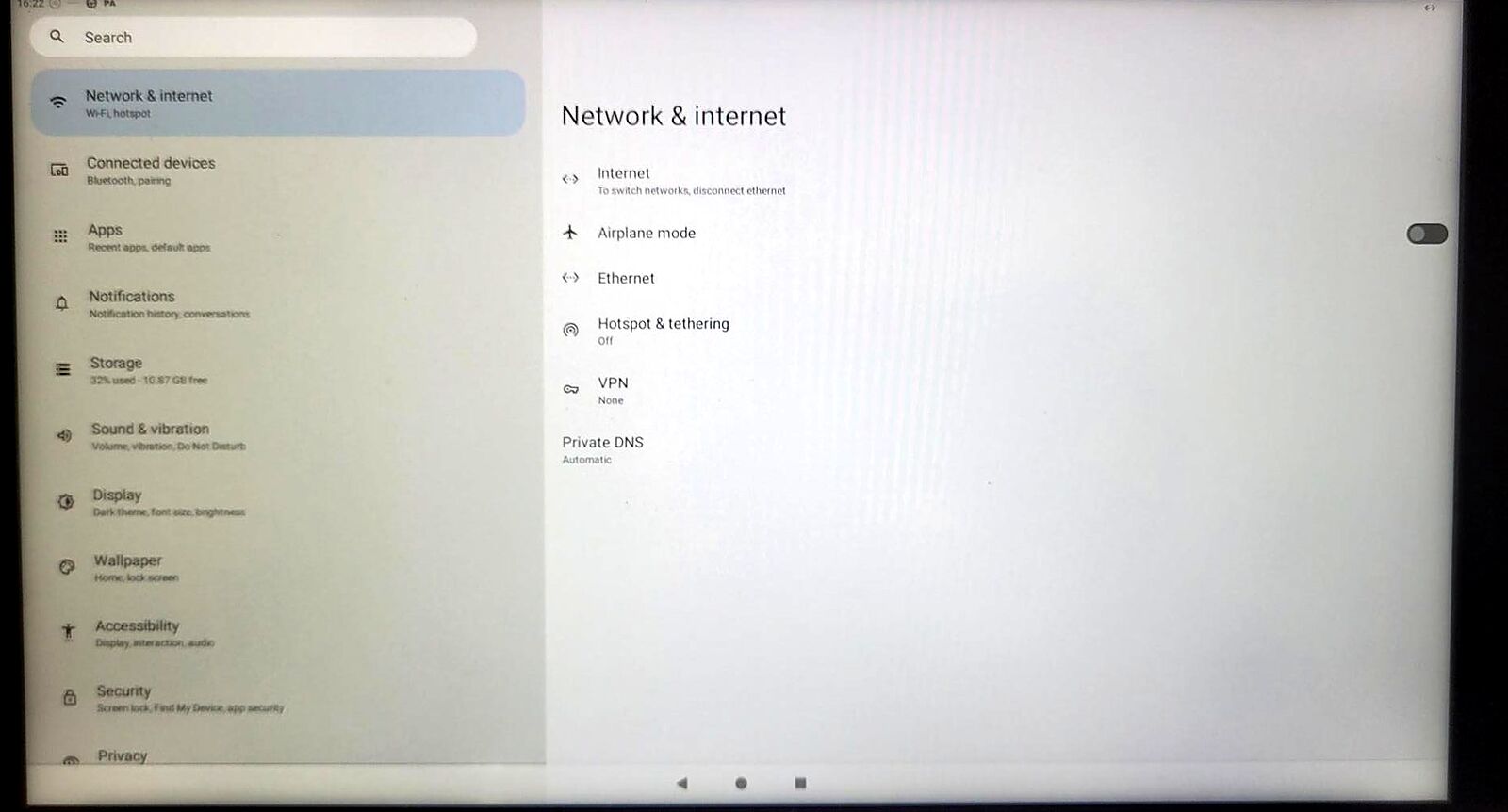
- Ethernet: plug the cable into the LAN port, the connection is automatic.
- Wi-Fi: go to Internet, select your network and enter the password.
¶ 3. Installation of E-Service and E-Box
Download the APK files from the Android downloads page, then install EMITY-E-SERVICE-Vx.xx.apk and EMITY-E-Box-Vx.xx.apk.
Link to the downloads page (https://wiki.emity.io/en/public/installation/os/android)
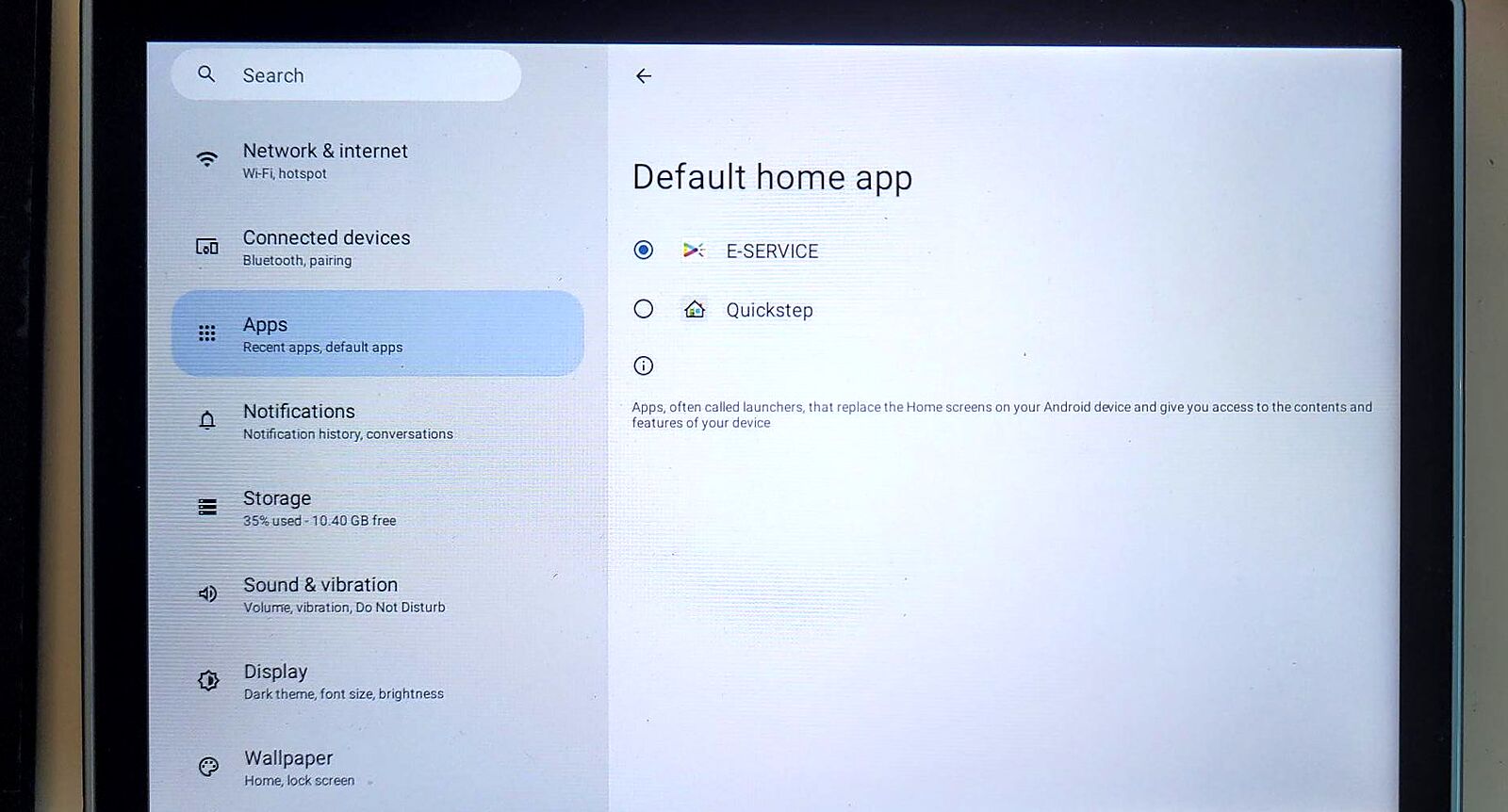
¶ 4. Set E-Service as the home app
Goal: launch E-Service automatically at every startup of the Panel PC.
Go to Settings → Apps → Default apps. By default, Chromium is shown.
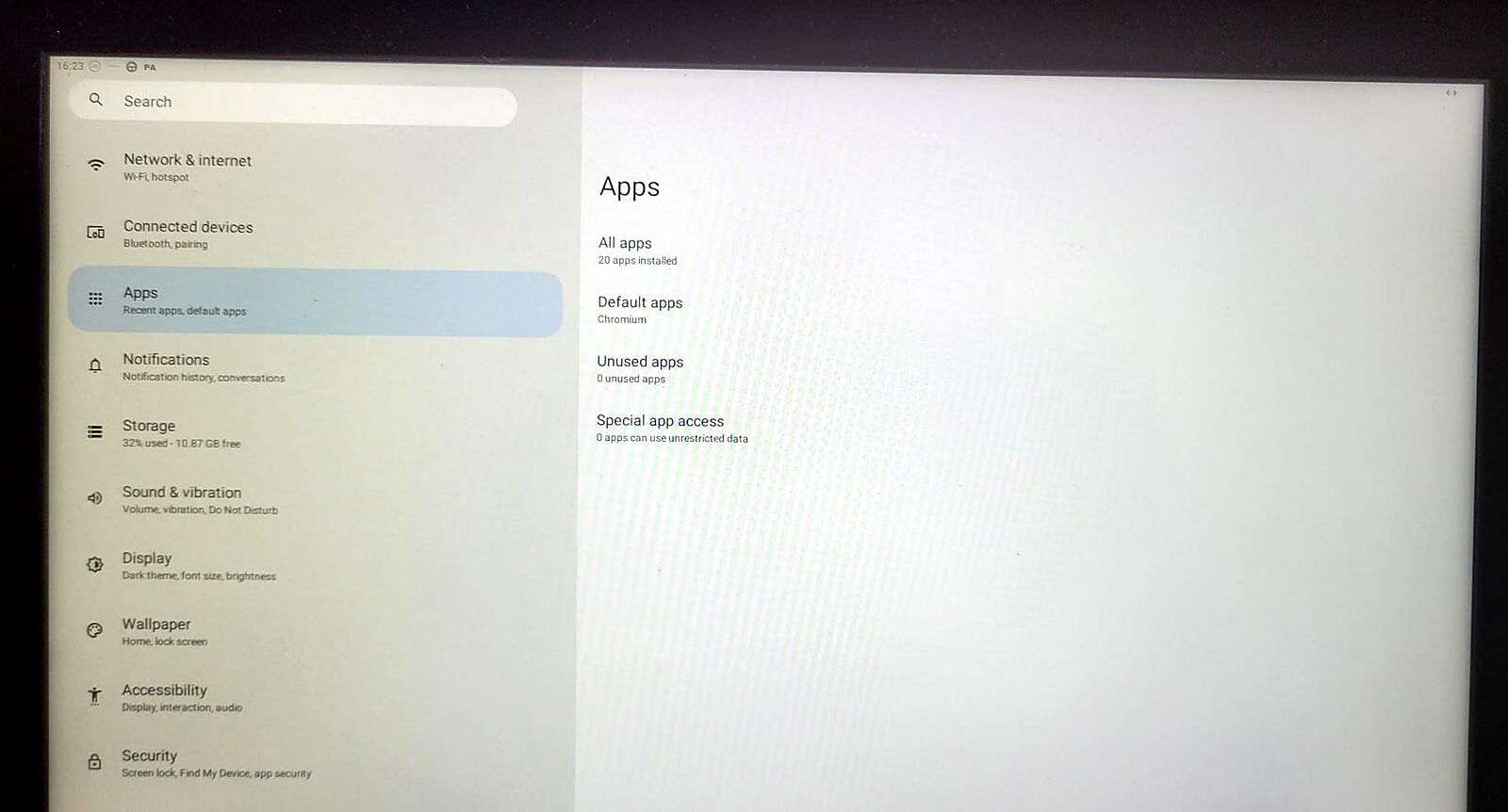
- Open Home app and select E-SERVICE.
¶ 5. Digital signage options
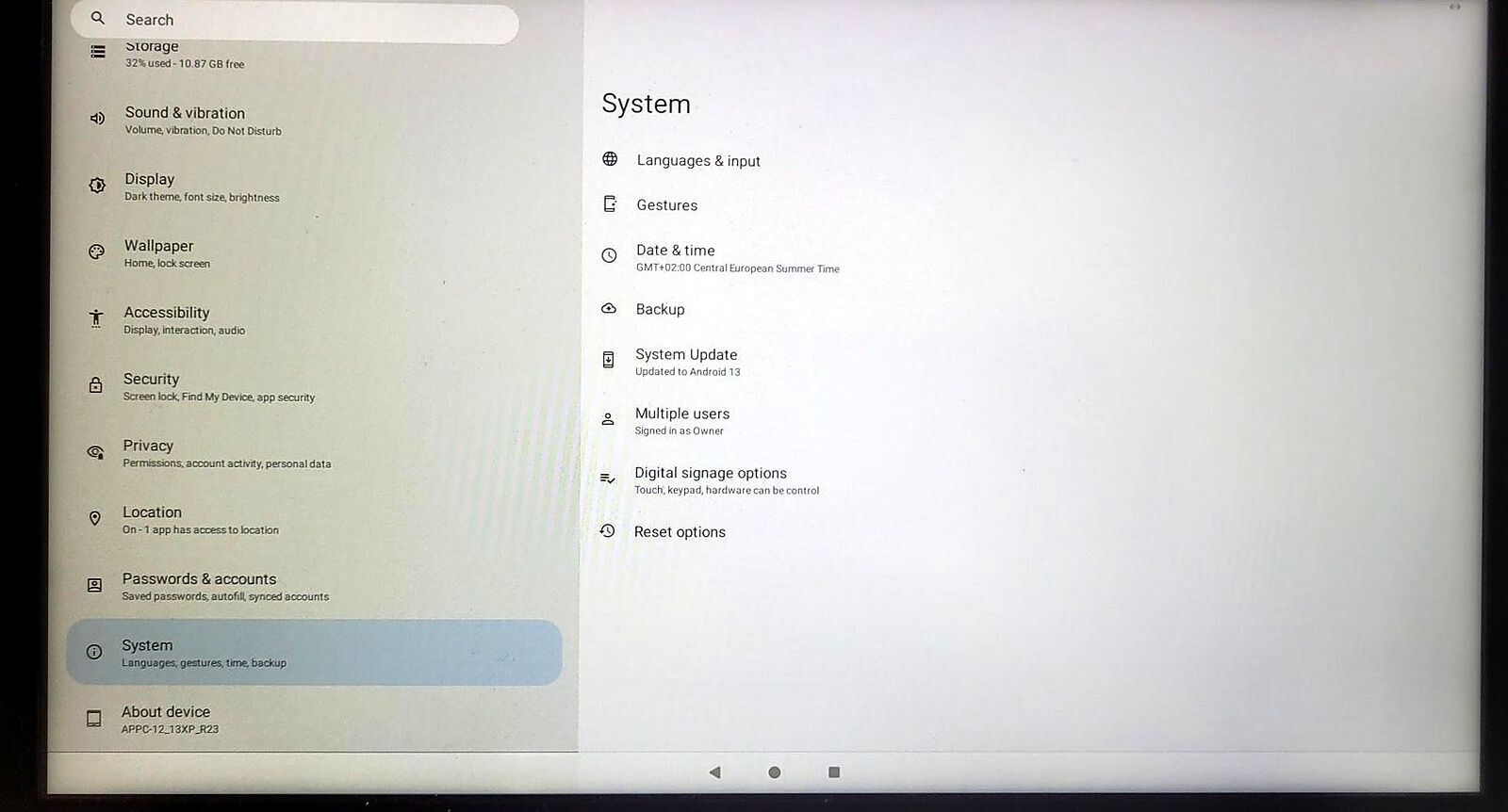
Go to Settings → System → Digital signage options.
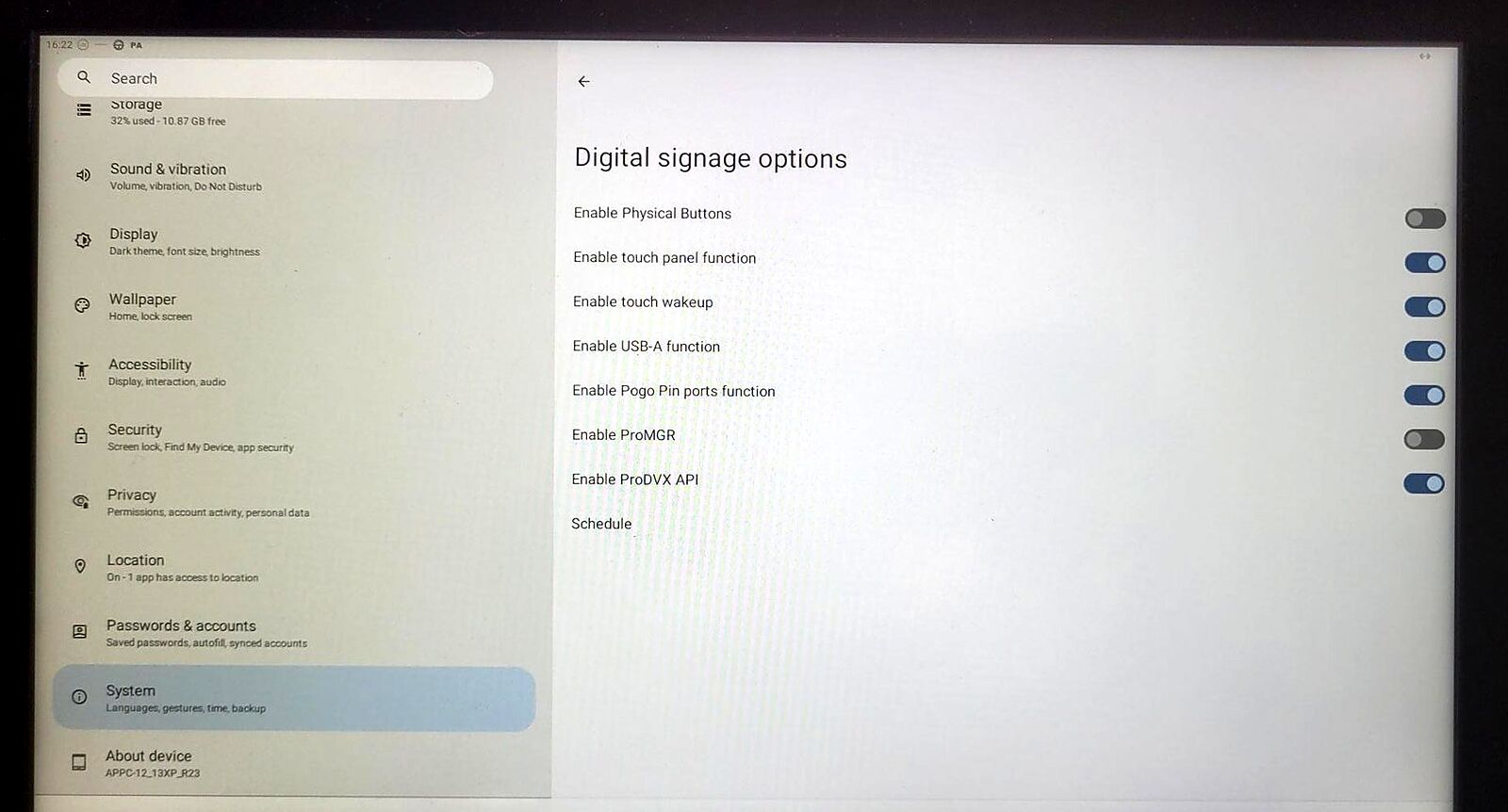
Check the following settings:
| Option | Setting |
|---|---|
| Enable Physical Buttons | Off |
| Enable touch panel function | On |
| Enable touch wakeup | On |
| Enable USB-A function | On |
| Enable Pogo Pin ports function | On |
| Enable ProMGR | Off |
| Enable ProDVX API | On |
Disabling the physical buttons prevents passers-by from turning off or changing the screen.
¶ 6. Commissioning
On restart, E-Box launches automatically and displays the device number.
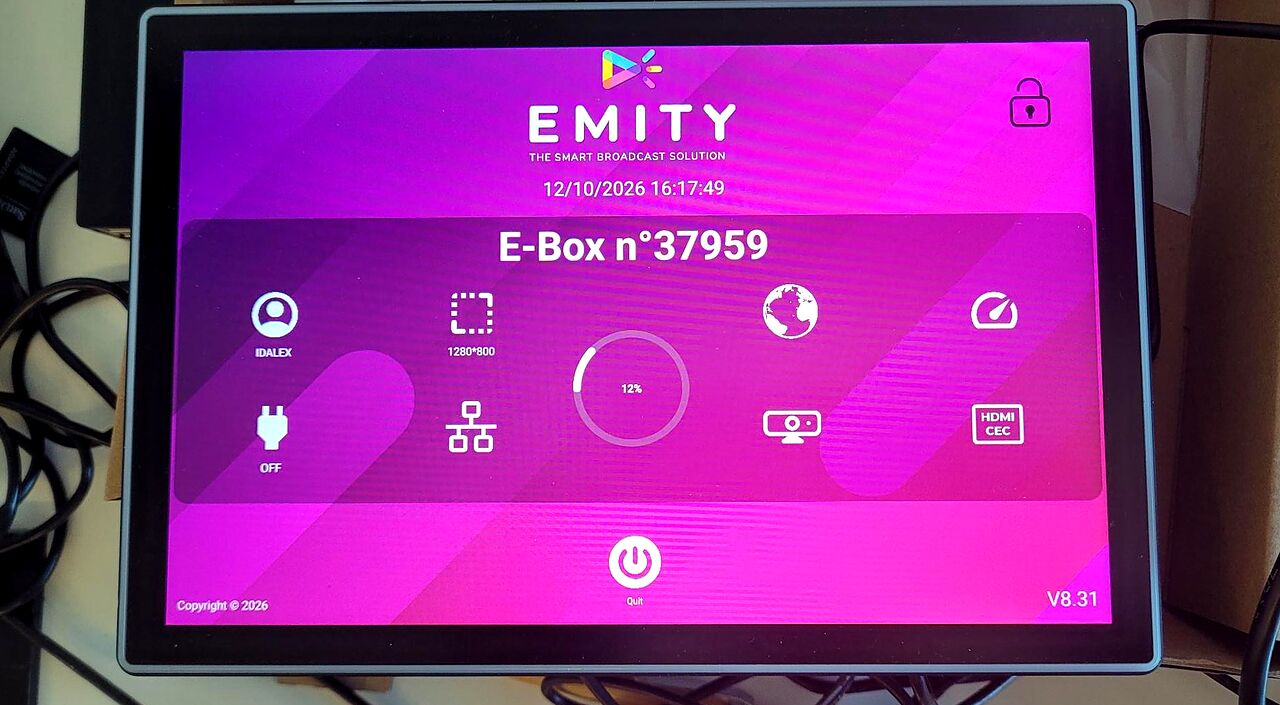
You have completed the configuration of the screen. A 4-character code should appear on the screen. You will then be able to add it to your account on the E-MANAGER platform.